The best way to create interactive reading assignments - 4 fun reading lesson plans
 Lucie Renard —
Your students “read” texts; but do they really understand it?
Many teachers struggle to check reading comprehension in a way that’s engaging, differentiated, and easy to assess.
In this blog post, I'll show you how you can create interactive reading exercises (or tests) that have different configuration options for your classroom using BookWidgets.
5 steps to creating a digital reading exercise
With BookWidgets, you can easily create interactive exercises and automatically graded assignments, tailored to your own class. Choose between about 40 digital exercise templates, fill them with your own content, and distribute them to your students through your LMS. Create quizzes (30+ engaging question types), crossword riddles, timelines, and even reading tasks.
1. Choose your widget
The best BookWidgets exercise templates for reading exercises are the "Split Worksheet" widget and the "Split Whiteboard" widget. Let me show you the difference below. Check out the examples to see what kind of reading exercises you can create with these BookWidgets exercises. As you know, you can adapt them with your own content entirely.
The Split Worksheet Widget
With the Split Worksheet widget, you can add a text which students have to read on one side, and ask them questions about the text on the other side of the exercise. Choose between 30 different interactive question types and adapt them with your own content. Most of the question types get automatically graded as well. You can configure this widget in many different ways.
 Reading lesson plan 1: An automatically graded reading exercise in which students have to read a letter and answer questions about the content.
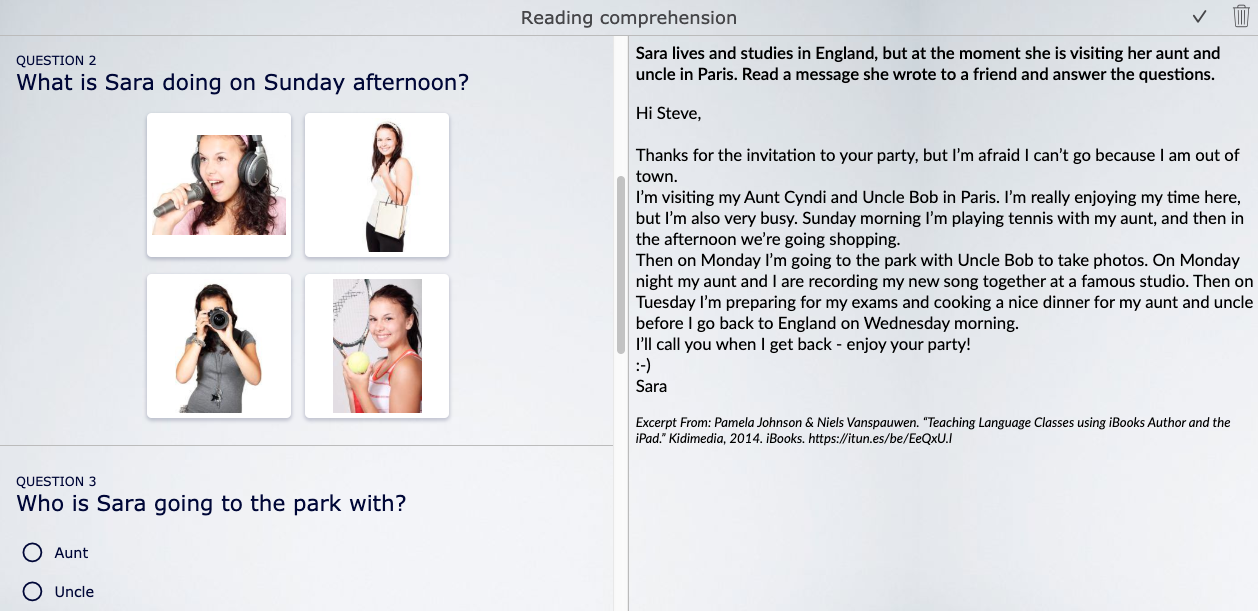
The exercise in the example is an automatically graded example where students get immediate results. Of course, you can also choose for them to submit the assignment or reading test. That way, you can review their work and send back student-oriented feedback.
The Split Whiteboard Widget
The Split Whiteboard is a bit different, but still perfect for reading exercises. You can still add a text that students have to read on one side of the widget. The other side is where the magic happens: it's a whiteboard on which students can write, draw, and add images.
Check out these two creative reading lesson ideas below. Click on the image to go to the exercise.
 Reading lesson plan 2:
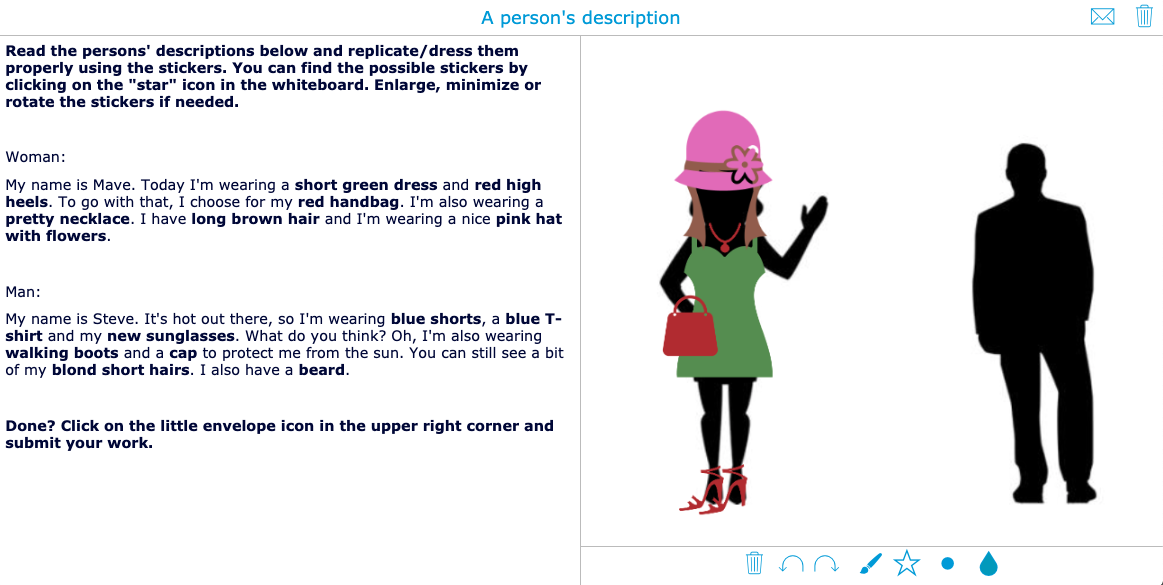
An interactive reading exercise about describing a person. Students have to read the text and dress up the characters based on the description in the text.
Reading lesson plan 2:
An interactive reading exercise about describing a person. Students have to read the text and dress up the characters based on the description in the text.
 Reading lesson plan 3: An interactive reading exercise in which students have to read road instructions, and replicate them in the correct way on the whiteboard background image.
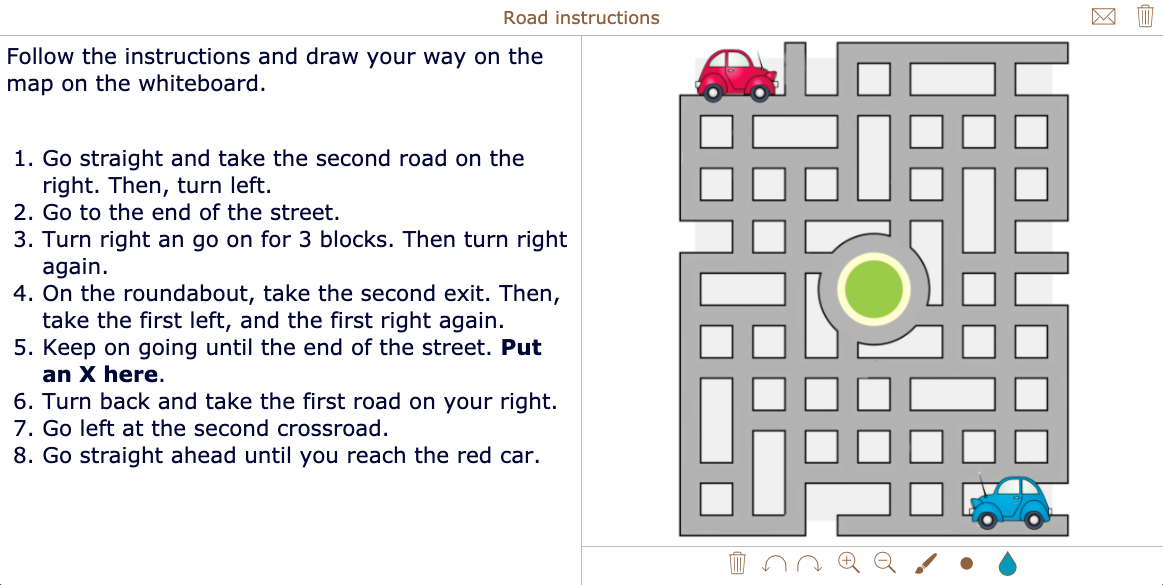
As you can see, these two widgets or interactive exercises allow you to create fun reading exercises. Add a background image and a text with clear instructions. You can directly measure your students' understanding by reviewing what they did on the whiteboard. Students just have to click on the little envelope in the upper right corner and send their work to you.
2. Add Rich, Formatted Content to Your Split Whiteboard and Split Worksheet
The Ressources section of the Split Whiteboard and Split Worksheet widget gives you everything you need to create engaging, interactive lessons. You can easily add text, images, videos, audio files, and hyperlinks to enrich your learning materials. This makes the widget especially powerful for reading exercises, blended learning activities, and multimedia lessons.
In addition, you can upload a fully formatted PDF document directly into the text area. This allows you to present complete articles, textbook excerpts, worksheets, or reading passages exactly as they were designed; without copying and reformatting the content yourself.
By simply selecting PDF as your text source and uploading your file, students can view a formatted document inside the widget. This ensures consistent layout, saves preparation time, and maintains the original design of your materials.
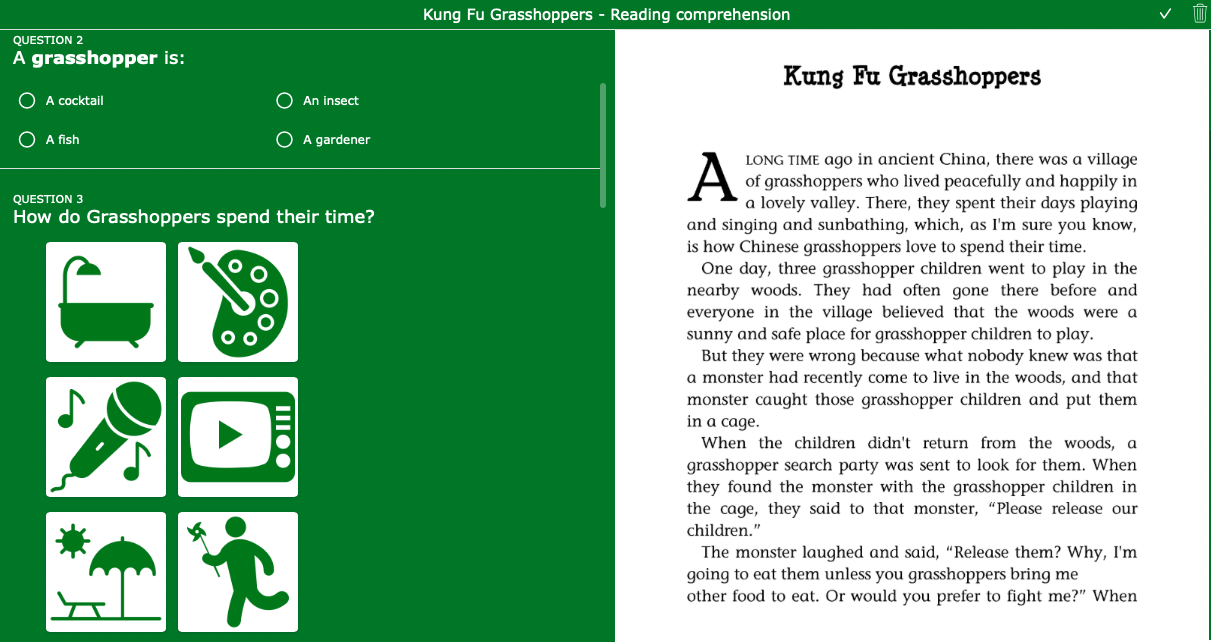
If you’re looking for inspiration, explore the reading exercise lesson idea below that demonstrates how to use a PDF within the Split Worksheet.
 Reading lesson plan 4: An automatically graded worksheet with interactive questions about a fiction story.
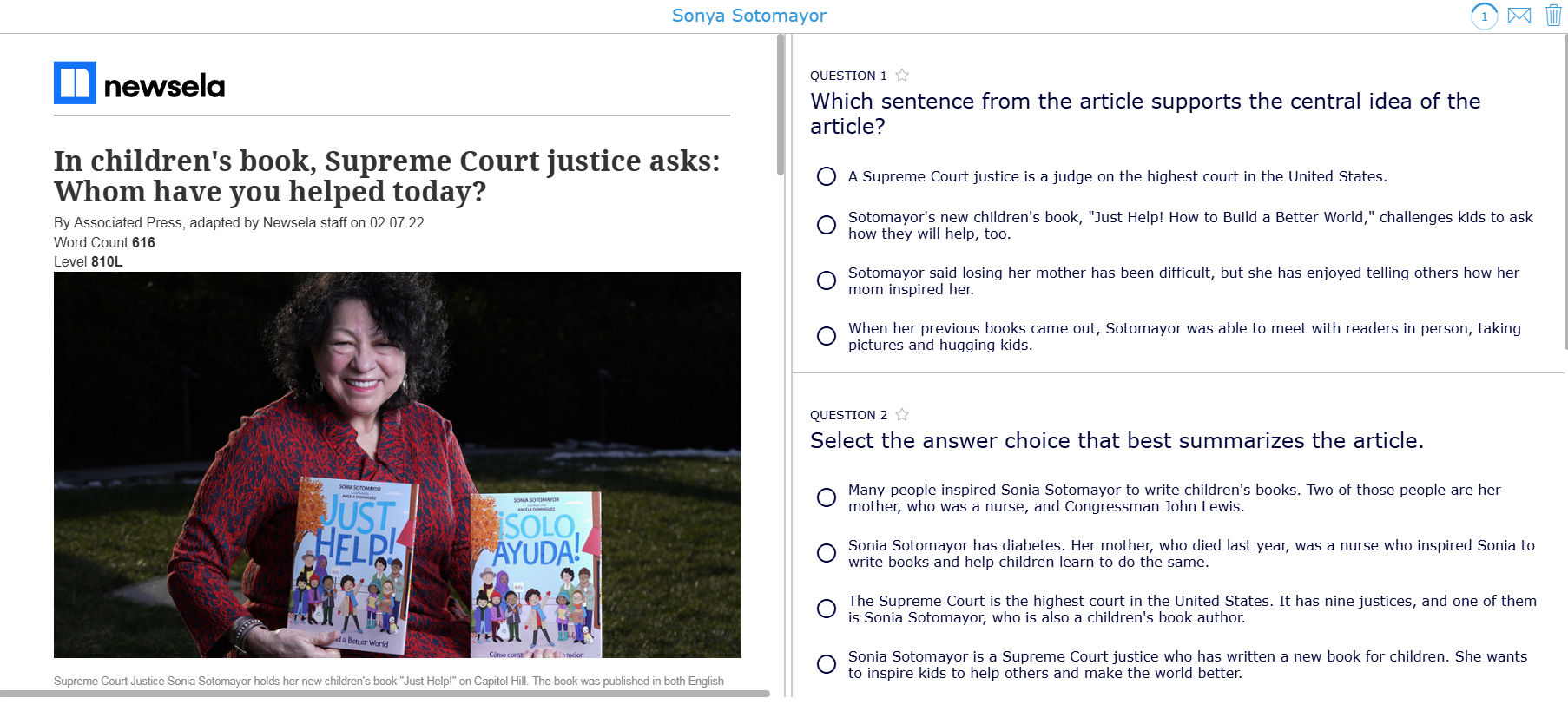
 Reading lesson plan 5: Let students dive into an immersive digital reading experience with an interactive BookWidgets + Naratopia story widget. These widgets are ideal for reading comprehension, storytelling, or language development. In this example, students read a fantasy story from Naratopia and answer embedded comprehension questions. Perfect for making reading fun and dynamic.


In this interactive reading activity, students meet Sonya Soyamer, a young girl from a village with limited access to electricity. Inspired to create change, she builds her own solar-powered light using recycled materials.
Tip: Use AI to generate texts for your reading comprehension lessons
Looking to save time when writing texts for your reading assignments? You can now use AI tools (like ChatGPT or other educational AI assistants) to generate custom reading texts tailored to your lesson topic, difficulty level, and target language skills. Whether you need a story about climate change for grade 8, or a short letter for vocabulary practice, AI can help you write it in seconds.
Simply describe what you need — for example: “a short fiction text for 12-year-olds about a girl who builds a solar-powered light”; and let the AI do the writing. You can then paste the text into your BookWidgets Split Worksheet or Whiteboard widget, and add interactive questions.
Using AI for reading comprehension activities is a great way to create differentiated, personalized content that meets your students' needs.
3. Add questions or configure your whiteboard
Based on your text, add questions to your Split Worksheet, or configure your Split Whiteboard by adding, for example, a background image or stickers.
4. Share with your students
When you configured both parts of the reading assignment, you're ready to share it with your students. Just get a shareable link and share it with your students. You can also immediately share BookWidgets exercises in Google Classroom and other LMSes. Or, you can share a QR-code that students need to scan.
Students open the exercises and start reading. Afterwards, they can submit their answers if you've enabled them to do so.
5. Review student work
When students submit the reading exercise, you can review their work and give feedback via the BookWidgets "grades and reporting" page. Now, all you have to do is return the reviewed work to the students, and the loop is closed!
More inspiration
For more inspiration on reading comprehension activities, check our other blog posts:
👉 15 Creative and digital book report ideas that will get your students excited to read shows how you can use BookWidgets specifically to design engaging, interactive reading exercises that enhance student comprehension in remote settings.
👉 10 Free and Unique Digital Lesson Plans to Enhance Student Reading Skills explores how to integrate captivating stories from Naratopia with the Split Worksheet in BookWidgets.
Wrap up
Creating engaging and interactive reading comprehension exercises doesn't have to be time-consuming. With the help of BookWidgets and the right tools including AI-generated texts, whiteboard collaboration, and PDF uploads you can build powerful digital reading lessons in just a few steps.
Whether you're looking to teach reading strategies, differentiate reading levels, or make reading fun through creativity, BookWidgets has you covered with templates like the Split Worksheet and Split Whiteboard widgets.
📚 Start designing your digital reading assignments today and discover how technology can support your students’ reading skills both in the classroom and during remote learning.
👉 Ready to get started?
Do you want to use the reading lesson plans used in this blog post? You can just copy the links and share them with your students. If you want to make changes to the widgets, duplicate them right here, and adapt them with your own content.


