
15+ Activities to Master Open-Ended Question Types in BookWidgets for Better Student Engagement
 Chelsey Both —
A correct answer doesn’t always tell you how a student got there. Open-ended questions give you a better look at the thinking behind the answer. When students have to explain their reasoning or find their own way to an answer, you get a better sense of what they really understand.
This makes open-ended questions useful in many different classroom situations. You can use them to challenge students with a problem or give them the freedom to respond in a way that shows their understanding. With the right question type, you can create activities that make students think more deeply and take a more active role in your lessons.
Ready-to-Use BookWidgets Lesson Ideas in This Post
This post includes 16 practical BookWidgets lesson ideas for using open-ended question types in the classroom. I’ve gathered them below for a quick overview, but make sure to explore all the activities further down to learn more and discover helpful tips for using them in your own lessons.
Language and Arts
- Social media reflection with rubric-based self-assessment
- Randomized book report with randomly selected focus areas
- Describing famous paintings through art analysis
- Visualizing prepositions of place and movement
- Book spine poetry with book titles
- Exploring basic literary devices through an interactive quiz
Math and Science
- Explain and draw geometric figures
- Data analysis using a virtual map
- Exploring vector diagrams through an aircraft scenarios
- STEM project progress documentation
Cross-Curricular and Creative Uses
- Time travel adventure with creative challenges across time
- Coding assignments to reinforce basic programming skills
- Exploring 9/11 through multiple sources
- Real-world shape recognition through photo searches
- New language vocabulary through drawing and audio
- Practicing how to pitch ideas as a travel agent
You can find all these free lesson ideas in this BookWidgets group. Teachers can use these ideas or start from scratch and create BookWidgets activities that students complete digitally.
If you're just switching to digital evaluations, let me explain BookWidgets in 3 sentences:
- BookWidgets is an all-in-one interactive quiz maker for teachers that helps all teachers create interactive digital assignments and assessments (with a variety of 37 interactive question types).
- Teachers can share BookWidgets evaluations through their connected learning management systems, such as Google Classroom, Microsoft Teams, Canvas, Moodle, and many more, making digital activities easy to manage within their existing workflow.
- Student answers are collected and organized in a grading dashboard, where teachers can review work, give feedback, and evaluate performance efficiently.
What Are Open-Ended Questions?
Open-ended questions give students the freedom to respond in their own words and show what they know in different ways. Unlike multiple-choice or fill-in-the-blank questions, they don't always have one fixed answer. Instead, they encourage students to explain their thinking and approach a question from their own perspective.
The response doesn't have to be a long written answer. Depending on the learning goal, students might write, record an audio response, or even submit a photo. This flexibility can give teachers a better understanding of what their students know and how they think.
So, what are the benefits of using open-ended questions in the classroom? Here are some of the key ways they can support both teaching and learning.
- Encouraging critical thinking: They encourage students to think more deeply about what they have learned instead of simply looking for the correct answer.
- Fostering creativity and innovation: With no single answer to work toward, students can explore their own ideas and come up with creative solutions or new ways of looking at a problem.
- Enhancing student engagement and ownership: Questions that invite students to share their thought or experiences can make them feel more involved in the learning process and take greate ownership of their learning.
- Supporting diverse learners: They give students the flexibility to approach a task in different ways, allowing them to work at their own level and show what they know in a way that suits them.
- Insights into the learning process: Teachers can see how students approach a question and identify where they may need additional support.
👉 Want to learn more about using Open-Ended Questions in BookWidgets? Be sure to check out this webinar on Open-Ended Questions and Rubrics!
Open-Ended Question Types in BookWidgets
| Example | Question Type & Explanation |
|---|---|
 |
Long Answer Question: Students can answer this question with a longer piece of text or paragraph. |
 |
Rich Text Paragraph Question: Students can respond with a longer formatted text (bullet points, colors, etc.). |
 |
Whiteboard Question: Students can make a drawing or use the typing tools to reply to your question. |
 |
Photo Question: Students upload an image or take a photo with their camera to answer the question. |
 |
Audio Recording Question: Students provide an oral answer using their microphone. |
🧑🏫 These question types are available in our Quiz, Video Quiz, Worksheet, and Split Worksheet widget types. You can create digital assignments with 36 question types, 30 of which can be automatically graded. Explore all our question types on our website.
16 Open-Ended Question Lesson Ideas for Teachers
Below are 16 lesson ideas using the BookWidgets open-ended question types. Each idea includes a lesson card with key details such as the subject, question type, learning goal, and estimated time needed. Throughout the blog post, you’ll also find practical teacher tips to help you get the most out of these activities.
1. Social Media Reflection with Rubric-Based Self-Assessment
| Area | Explanation | |
|---|---|---|
| 🎓 | Subject | Social studies, English, or media literacy |
| ❓ | Question type | Long Answer |
| 🎯 | Learning goal | Students reflect on the impact of social media and evaluate their own written response. |
| ⏱️ | Time needed | 20–30 minutes |
How has social media changed the way people interact with each other? In this activity, students write an open-ended response to this question, then use a rubric to evaluate their own work. They finish by reflecting on their writing process, considering what they found easy or challenging and where they could improve.

💡 Teacher Tip: Use the word counter feature so students can see the length of their response. This is especially helpful when you want students to adhere to a specific word limit. It ensures they don’t write too much or too little.
2. Randomized Book Report with Randomly Selected Focus Areas
| Area | Explanation | |
|---|---|---|
| 🎓 | Subject | English, language arts |
| ❓ | Question type | Rich Text Paragraph |
| 🎯 | Learning goal | Students analyze and describe different aspects of a book in a structured book report. |
| ⏱️ | Time needed | 30–45 minutes |
Instead of answering the same book report questions every time, students use a randomizer to determine which aspects of their book they need to discuss. They spin the wheel three times, then answer the corresponding questions in the widget, giving each student a different set of focus areas for their book report.

💡 Teacher Tip: Use our Rich Text Paragraph question to allow students to respond with a longer formatted text. They can use bullet points, colors, etc.
3. Describing and Analyzing Famous Paintings Through Art Theory
| Area | Explanation | |
|---|---|---|
| 🎓 | Subject | Art |
| ❓ | Question type | Long Answer |
| 🎯 | Learning goal | Students apply art theory to analyze paintings and use what they learn to inspire their own artwork. |
| ⏱️ | Time needed | 30–45 minutes |
Students explore four famous paintings by describing and analyzing each artwork using the art theory they’ve learned. After reflecting on the paintings and their different styles, they create their own artwork inspired by one of the works they studied.

4. Visualizing Prepositions Through Drawing
| Area | Explanation | |
|---|---|---|
| 🎓 | Subject | English, language learning |
| ❓ | Question type | Whiteboard |
| 🎯 | Learning goal | Students demonstrate their understanding of prepositions of place and movement by interpreting and visualizing their meaning. |
| ⏱️ | Time needed | 15–20 minutes |
Students read a short text featuring prepositions of place and movement, then draw the described scene on the whiteboard. This gives them a visual way to demonstrate their understanding of how prepositions are used.

5. Create Book Spine Poetry with Five Books
| Area | Explanation | |
|---|---|---|
| 🎓 | Subject | English, creative writing |
| ❓ | Question type | Photo, Rich Text Paragraph |
| 🎯 | Learning goal | Students explore creative writing by combining book titles to create a poem and explain their creative choices. |
| ⏱️ | Time needed | 20–30 minutes |
Turn a library visit into a creative writing activity by having students select five books whose titles combine to form a poem. They then stack the books in order, photograph their book spine poetry, and submit the photo.

6. Exploring Basic Literary Devices
| Area | Explanation | |
|---|---|---|
| 🎓 | Subject | English, language arts |
| ❓ | Question type | Long Answer |
| 🎯 | Learning goal | Students recognize and explain common literary devices such as similes, metaphors, and personification. |
| ⏱️ | Time needed | 15–20 minutes |
This short activity introduces literary devices such as similes, metaphors, and personification in an accessible way. It helps you assess students’ existing knowledge and identify common misunderstandings early.

💡 Teacher Tip: Start using labels in your grading process. By incorporating labels into your routine, you can save valuable time while providing students with clear and actionable feedback. For more details, explore this section of the blog.
7. Explaining and Visualizing Geometric Figures
| Area | Explanation | |
|---|---|---|
| 🎓 | Subject | Mathematics, geometry |
| ❓ | Question type | Long Answer |
| 🎯 | Learning goal | Students explain the properties of geometric figures and demonstrate their understanding by drawing them. |
| ⏱️ | Time needed | 20–30 minutes |
In this Math Worksheet, students explain key characteristics of a geometric figure, including concepts such as symmetry, angles, and proportions. They then draw the figure based on their understanding, combining mathematical explanation with visual representation.

💡 Teacher Tip: Use the Scratchpad to let students draw their figures. Let them know that their drawings will also be evaluated, so they should put as much care into their visual representation as their written explanation.
8. Data Analysis Using a Virtual Map
| Area | Explanation | |
|---|---|---|
| 🎓 | Subject | Geography, social studies |
| ❓ | Question type | Rich Text Paragraph |
| 🎯 | Learning goal | Students interpret data from a map and communicate their findings in a clear, structured response. |
| ⏱️ | Time needed | 20–30 minutes |
Boost independent learning with this activity. Students explore a virtual map from the World Food Programme while answering questions alongside it. They can work at their own pace and format their responses with features such as colors and bullet points.
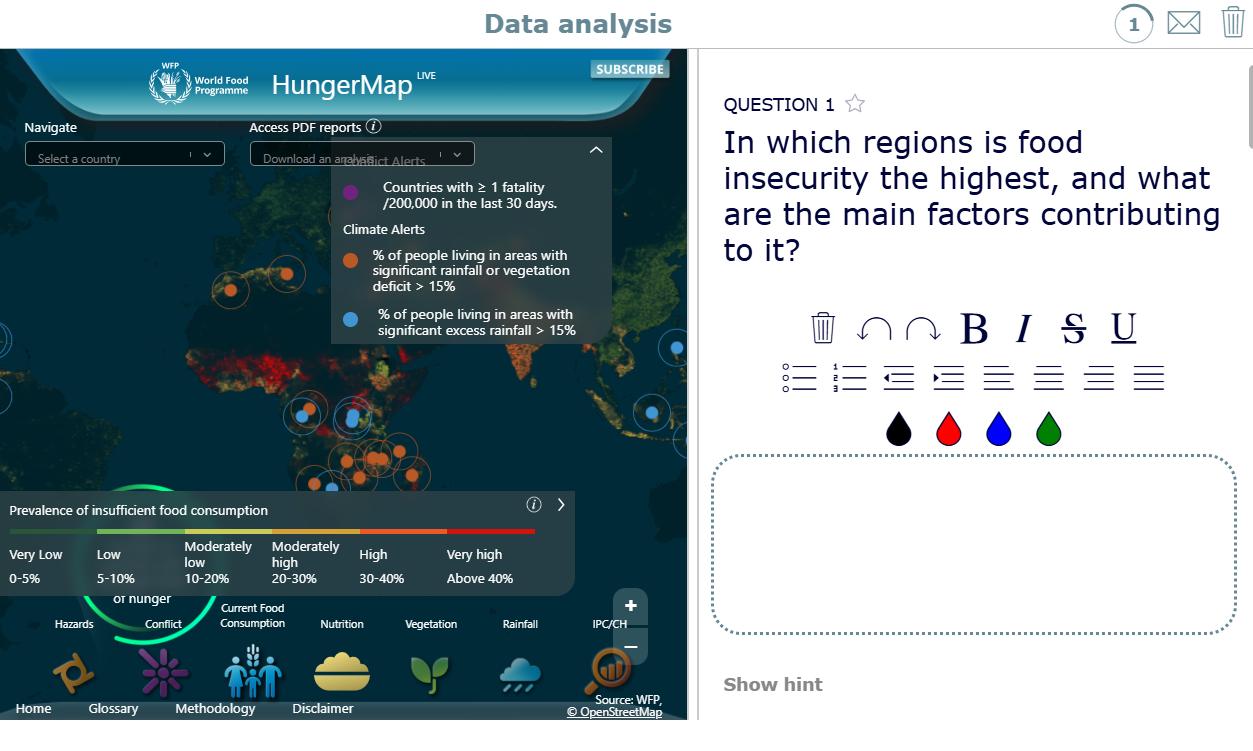
💡 Teacher Tip: Add hints to questions to give students extra guidance when they need it. This can help them work more independently while still providing support when needed.
9. Vector Diagrams in a Real-World Context
| Area | Explanation | |
|---|---|---|
| 🎓 | Subject | Mathematics, physics |
| ❓ | Question type | Long Answer, Whiteboard |
| 🎯 | Learning goal | Students define vectors and use vector diagrams to solve a problem involving the speed of an aircraft. |
| ⏱️ | Time needed | 20–30 minutes |
This Worksheet activity introduces students to vectors by combining a written definition with a visual representation. Students define what a vector is and draw a vector diagram on the whiteboard to calculate the actual speed of an aircraft. They can start with the drawing first if they find it easier to visualize the concept before writing the definition.

💡 Teacher Tip: Give students access to a calculator directly in the widget by going to General > Calculator and choosing either the simple or scientific calculator.
10. Documenting a STEM Project Step by Step
| Area | Explanation | |
|---|---|---|
| 🎓 | Subject | STEM, science, technology, engineering, mathematics |
| ❓ | Question type | Photo |
| 🎯 | Learning goal | Students document their progress and demonstrate the steps they followed to complete a STEM project. |
| ⏱️ | Time needed | Varies depending on the project |
Ever assigned a homework project and wondered if students truly completed it? Photo Questions give you a clear view of students' progress throughout for example a STEM project. Ask them to submit photos at different stages to show how they followed the process and completed their project.

11. Time Travel Adventure with Creative Challenges Across Time
| Area | Explanation | |
|---|---|---|
| 🎓 | Subject | Cross-curricular, language learning |
| ❓ | Question type | Rich Text Paragraph, Long Answer, Photo, Audio Recording |
| 🎯 | Learning goal | Students explore different time periods while completing creative tasks and expressing their ideas in different formats. |
| ⏱️ | Time needed | 30–45 minutes |
A fun, interactive adventure that takes students on a journey through the past and into the future, with creative challenges to complete along the way. Students can respond in different ways, including writing, recording audio, and submitting photos of their completed tasks.

💡 Teacher Tip: Use Photo Questions when students need to complete a task in the real world. Their photos provide evidence that they carried out the activity.
12. Coding Assignments to Reinforce Programming Skills
| Area | Explanation | |
|---|---|---|
| 🎓 | Subject | Computer science, programming |
| ❓ | Question type | Long Answer |
| 🎯 | Learning goal | Students practice writing and applying basic programming concepts through coding assignments. |
| ⏱️ | Time needed | 20–30 minutes |
Give students the opportunity to write and submit computer code directly in their assignment. The code input option preserves formatting with a monospaced font, making it easier for students to write and present their code clearly.

💡 Teacher Tip: Enable code input for the question to give students a monospaced text field that preserves code formatting and structure.
13. Exploring 9/11 Through Multiple Sources
| Area | Explanation | |
|---|---|---|
| 🎓 | Subject | History, social studies |
| ❓ | Question type | Rich Text Paragraph, Long Answer, Audio Recording |
| 🎯 | Learning goal | Students deepen their understanding of September 11, 2001 by exploring and analyzing information from multiple sources. |
| ⏱️ | Time needed | 45-60 minutes |
This activity combines different types of content to help students explore and understand the events of September 11, 2001. Students can engage with texts, videos, and images in one place, creating a more comprehensive learning experience.

💡 Teacher Tip: Use the Private Clipboard option under General > Copy/Paste Restrictions to prevent students from copying information from external websites. If you want students to copy text within the widget, enable text selection and text-to-speech in the General tab.
14. Real-World Shape Recognition Through Photo Searches
| Area | Explanation | |
|---|---|---|
| 🎓 | Subject | Mathematics, geometry |
| ❓ | Question type | Photo |
| 🎯 | Learning goal | Students identify geometric shapes in their surroundings and connect mathematical concepts to the real world. |
| ⏱️ | Time needed | 20–30 minutes |
Time to burn off some energy! Turn a lesson into an active shape hunt by having students search their surroundings for specific shapes and photograph what they find. The activity can be completed individually or in groups and can easily be turned into a friendly competition.

15. New Language Vocabulary Through Drawing and Audio
| Area | Explanation | |
|---|---|---|
| 🎓 | Subject | World languages, language learning |
| ❓ | Question type | Whiteboard |
| 🎯 | Learning goal | Students build vocabulary and language comprehension while connecting new words and sentences to visual representations. |
| ⏱️ | Time needed | 15–20 minutes |
Introduce new vocabulary or sentences in a fun, creative way by having students represent their meaning on the whiteboard. Adding an audio recording lets students hear the correct pronunciation as they engage with the new language. This creative approach makes language learning feel more interactive and engaging.

16. Practicing How to Pitch Ideas as a Travel Agent
| Area | Explanation | |
|---|---|---|
| 🎓 | Subject | Language learning, communication skills |
| ❓ | Question type | Audio Recording |
| 🎯 | Learning goal | Students practice presenting and pitching an idea clearly and persuasively. |
| ⏱️ | Time needed | 30–45 minutes |
This activity gives students the opportunity to practice pitching an idea in a creative and engaging way. Using the Randomness Wheel, they create a vacation plan and record a presentation designed to convince others that their trip is worth choosing. The activity works well as a graded assignment for home or in smaller classes, and peers can provide feedback using a rubric.

Features That Make Assessing Open-Ended Questions Easier
BookWidgets offers several features that can help you assess open-ended responses and manage the grading process. From automatic keyword scoring to rubrics and correction labels, you can choose the features that work best for your assignment. Let’s take a look!
1. Automatic Scoring with Keywords
BookWidgets can automatically score multiline answers based on keywords or key phrases. Add the words or phrases you want students to include in their answers, and the system can check their responses for those keywords.
You can also give individual keywords a specific point value. Simply add ## followed by the number of points you want to assign to each keyword. The total score will always stay within the maximum score you set under 'Correction and scoring options', even if the keyword scores add up to more.

💡 Teacher Tip: If you want to accept different answers for the same keyword, add the alternatives on one line and separate them with ##. You can use this whether or not you assign points to individual keywords. For example: father##dad
2. Work with Scoring Rubrics
Scoring rubrics give you a clear framework for assessing open-ended digital assignments. You can attach a rubric to our open-ended question types, which are Long Answer, Rich Text Answer, Whiteboard, Photo, and Audio Recording. While configuring the question, go to the scoring and correction options at the bottom of the question configuration and choose: add your rubric.
When students submit their work, you can use the rubric to assess their responses based on the criteria you have chosen. This keeps your assessment criteria connected to the student's actual work and helps you grade responses more consistently. Want to learn more about scoring rubrics? Read our blog post to learn how to create and use them.
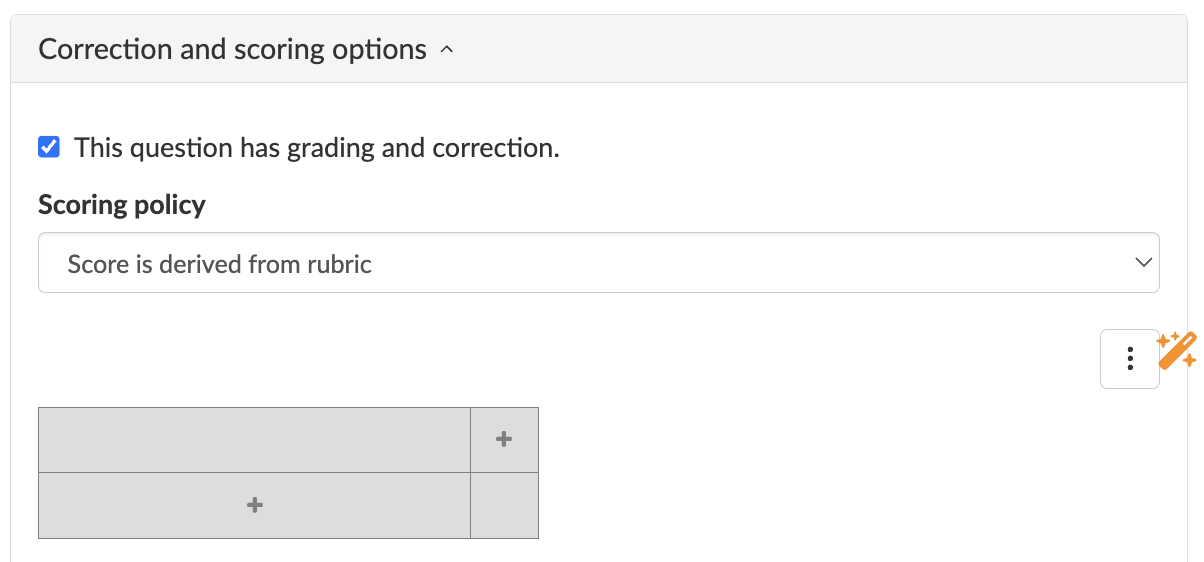
Build your rubric from scratch, or if you're already a BookWidgets pilot school testing out our AI prototype, click the magic wand to let the AI do the work for you. You can also enable the AI assistant and just ask "Add a scoring rubric to this question". The AI will read the instructions and understand the question set up. This way, it'll create a scoring rubric in just a few seconds!
3. Randomize Questions
Randomizing questions makes it more difficult for students to copy each other's answers when they are working on the same assignment. You can randomize the order of questions, or add multiple versions of a question so that students may receive a different one. This gives you more flexibility when creating assignments and helps you create a more independent assessment experience for your students.
Want to learn more about randomizing questions? Read our blog post to discover how question randomization works and how you can use it in your assignments. Or check out our video tutorial.

4. Work with Correction Labels
Correction labels make it easier to give clear, consistent feedback when grading open-ended questions. You can use labels such as "Verb Tense" or "Spelling" to quickly point out areas where students can improve. If a response needs more explanation, you can add a written comment alongside the label to offer more detailed feedback.
You can also create your own correction labels to match the needs of your subject or students. This keeps your feedback organized and saves time when grading. Want to get more out of correction labels? Read our blog post to learn more about using correction labels and discover the best correction labels for different courses.

5. Provide a Rationale
A rationale lets you explain the answer or provide additional context after students submit their responses. Depending on the widget type, you can add a rationale to individual questions so students can see what was expected of them and compare it with their own answer.
It doesn't automatically grade an open-ended response. Instead, it gives you a clear reference point when reviewing student work, helping you grade more consistently while giving students useful feedback on their answers.
6. Grade Question by Question
Grading open-ended questions one question at a time can make it easier to stay focused on the learning objective you're assessing. Instead of reviewing one student's entire submission before moving to the next, you can work through the same question for all students first. This gives you a consistent point of comparison and helps you give feedback that is specific to the question.
Want to see how this works in practice? Watch the video to learn more.
7. Grade Student by Student
When questions build on one another, it can be helpful to review one student's entire assignment at a time. This gives you a better view of how their responses connect and helps you assess their understanding across the full assignment. It can be especially useful when you want to follow a student's progress from one question to the next.
Want to learn more about grading student by student? Watch the video course to see how it works.
8. Correction actions in Scratchpad, Photo & Whiteboard
When students submit visual work through a Photo or Whiteboard question, you can review their work directly in the feedback window. Add written comments or record audio feedback to give students more personalized guidance.
You can also open the Scratchpad Notes to review what students have drawn or written there and leave feedback in the same way. If you assign points for work done on the scratchpad, make this clear in the question so students know it will be part of the assessment.

Are Open-Ended Questions Still Relevant in the Age of AI?
Would you believe us if we told you that open-ended questions may be more important than ever in the age of artificial intelligence (AI)?
As AI tools become increasingly capable of generating answers, students need opportunities to do more than simply recall information or produce a correct response. They need to explain their reasoning, evaluate information, apply what they have learned, reflect on their own experiences, and develop ideas of their own.
This doesn't mean that every open-ended question automatically leads to deeper learning. The way you design the question matters. Instead of asking students to simply repeat information that an AI tool could generate in seconds, consider creating questions that require them to think and show how they arrived at their answer.
Here are some ways to make your open-ended questions more meaningful in an AI-driven learning environment.
1. Encourage higher-order thinking
Rather than focusing only on what students can remember, ask questions that encourage them to use what they have learned in different ways. For example, instead of asking students to define a concept, ask:
"How could you apply this concept to a real-world situation?"
Questions like these encourage students to transfer their knowledge to a new context and show that they understand more than just the basic facts.
2. Ask for Personal Reflection
AI can provide general information, but it cannot replace a student's own experiences and perspectives. Ask questions that encourage students to connect what they are learning to their own lives. For example:
"How has your background influenced your perspective on this issue?"
3. Encourage Students to Evaluate AI-Generated Information
AI can provide information quickly, but students still need to develop the skills to question, evaluate, and verify what they receive. You can turn AI into a learning opportunity by asking students to fact-check an AI-generated response, compare it with reliable sources, identify missing information, or point out potential biases. For example:
"Ask an AI tool to summarize this topic. What information is missing? Which parts would you change, and why?"
This approach encourages students to engage critically with AI-generated content rather than simply accepting it as correct. It also helps them develop the skills they need to evaluate information more broadly.
4. Ask Students to Explain Their Reasoning
Don't focus only on the final answer. Give students opportunities to explain how they reached a conclusion and support their ideas with evidence. For example:
"Which sociological theory best explains this phenomenon? Defend your answer with examples."
This makes the reasoning behind the answer part of the learning process and gives you a better understanding of how students are thinking.
5. Encourage Original Responses
If you want students to formulate their own answers, BookWidgets' copy/paste restrictions can help prevent them from directly pasting content from external websites or AI tools into their responses. This can encourage students to process information and put their answers into their own words.
It's important to note that this is just a practical tool, not a replacement for thoughtful question design. The most effective way to encourage meaningful learning is still to ask questions that require students to reason, reflect, evaluate, and apply what they know.
Wrap Up
Open-ended questions can bring a different kind of energy to your lessons. They give you more opportunities to involve your students and see what they can do when they have the freedom to respond in their own way.
I hope these activity ideas have inspired you to try open-ended questions in your own classroom. Whether you’re planning a new lesson or looking for a fresh way to approach an activity you already teach, there are plenty of ways to make your students more actively involved in the learning process.
Have you created an open-ended activity you’re particularly proud of? We’d love to see what you come up with! Share your ideas with us on Instagram, or join our teacher community on Facebook.
And if you'd like to stay connected, feel free to follow me, Chelsey, on LinkedIn! 👋


