
From 10 Tools to 1: How to Consolidate Your School’s Digital Toolbox
 Lucie Renard —
Every school starts with good intentions.
One tool for taking tests. Another for homework and in-class assignments. Something else for live interaction. One for gamification. Different tools for teaching different subjects. Oh—and one that is perfect for feedback.
Fast forward a few years, and teachers are juggling 10 different tools, each with its own login, its own learning curve, its own privacy policy, and its own “oops, this doesn’t integrate” moment
Sound familiar? Tool sprawl is real—and it’s exhausting.
The good news? You don’t need 10 tools to do 10 different things. You can consolidate your entire digital toolbox into one flexible platform.
Let’s break it down 👇
Why Consolidating Tools Matters (More Than Ever)
Before diving into the “how”, let’s be honest about the hidden cost of too many tools:
- Teachers waste time switching platforms
- Students forget where to find what
- IT teams manage endless accounts
- School data is scattered everywhere
- Professional development becomes a nightmare
Consolidation isn’t about limiting teachers. It’s about freeing them.
How You Can Go from Ten Different Teacher Tools to One
This is probably the right place to tell you a bit more about BookWidgets before digging in.
BookWidgets is an all-in-one digital learning platform that lets teachers create interactive lessons, assignments, games, and assessments in a single tool. Instead of using separate platforms for tests, worksheets, flashcards, feedback, live monitoring, and lesson delivery, BookWidgets brings all of these together through flexible widget types like quizzes, worksheets, WebQuests, flashcards, and more. Because everything is created, shared, monitored, and reviewed in the same environment—and seamlessly integrates with existing LMS platforms—teachers can teach more efficiently without switching tools, students experience a clear and consistent workflow, and schools drastically reduce digital complexity while improving instructional quality.
All the activities in this blog post are created with BookWidgets and can be easily duplicated, adapted, and shared with your students. You can find all the lesson plans in this BookWidgets group along with over 3000 other BookWidgets example lessons.
1. Tests & Exams → Quiz Widget
What teachers use now: Dedicated test or exam platforms
Replace with the BookWidgets Quiz widget
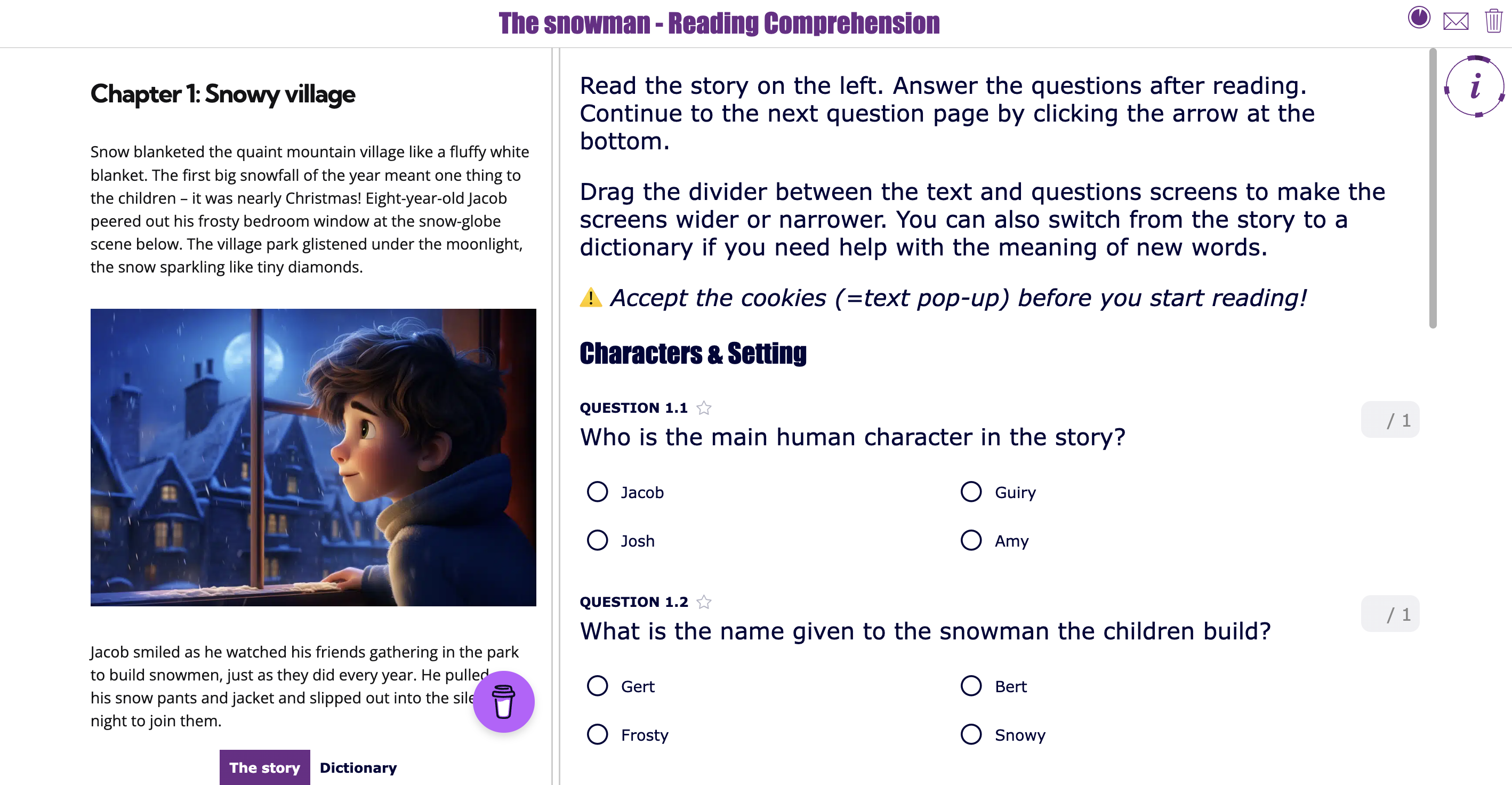
 The Quiz widget is one of BookWidgets’ most powerful tools for assessment, combining flexibility, engagement, and ease of use in one place. With support for over 35 question types and automatic grading, teachers can build everything from short comprehension checks to full assessments that work on any device. Recently, BookWidgets introduced an exciting enhancement called question pages, enabling educators to create structured multimedia exams where questions are grouped logically across multiple pages and paired with rich resources like videos, images, text, PDFs, and audio that automatically appear as students work through each section. This new structure keeps related exam questions together and reduces cognitive load.
The example test
Here's a summative language exam with multiple sections (reading, application, vocabulary & Grammar, ...), each supported by multimedia resources and automatically graded where possible.
Students have to submit the assignment to the teacher to receive teacher feedback afterward.
Features that stand out for this purpose
- LMS integration with SSO for taking tests and receiving feedback in 1 place
- Safe Exam Browser integration to lock exams and tests in place
- You can also share Exam Links in other exam proctoring tools to lock the test, for example, on Chromebooks.
- A variety of interactive questions to evaluate in each stage of Bloom's taxonomy or Webb's Depths of Knowledge (DOK) levels.
- Safe time grading because of the auto-graded questions and efficient grading dashboard
- Return grades, and (text & audio) feedback to students - optionally - in a locked environment using Safe Exam Browser or the Exam Link feature
2. Homework & In-Class Assignments → Worksheet Widget
What teachers use now: PDF worksheets or PDF editing tools like Kami, document editors, or practice tools like Wayground or H5P
Replace with the BookWidgets Worksheet widget
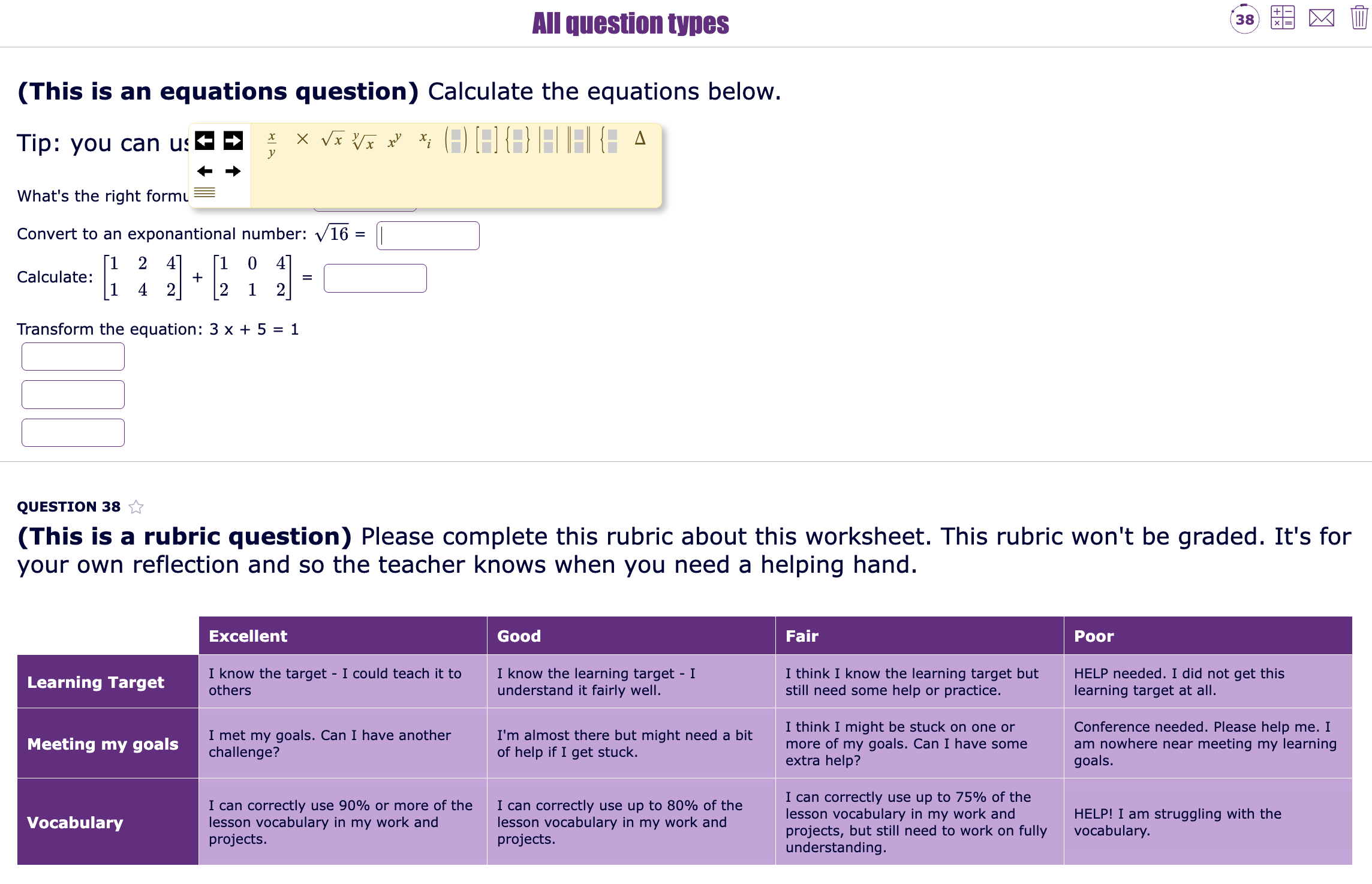
 The Worksheet widget turns traditional assignments into interactive, digital learning activities. Teachers can combine instructional content, closed questions, and open-ended tasks in one structured flow, making it ideal for both homework and in-class assignments. Automatic correction for closed questions provides instant feedback, while open questions can hold an explanation for students to compare their answers with.
Example assignment
Here's an example worksheet showcasing all possible BookWidgets question types. You'll see that even science and math teachers can build meaningful worksheets using BookWidgets. The layout has all the questions below each other.
Features that stand out for this purpose
- Mix of auto-graded and open-ended questions
- Audio recording questions for reasoning and speaking assignments
- Document importer to transform existing worksheets into BookWidgets worksheets and save time
- Immediate feedback for students
- Clear overview of student progress and completion
3. Flashcards → Flashcard Widget
What teachers use now: Standalone flashcard apps like Quizlet
Replace with the BookWidgets Flashcard widget
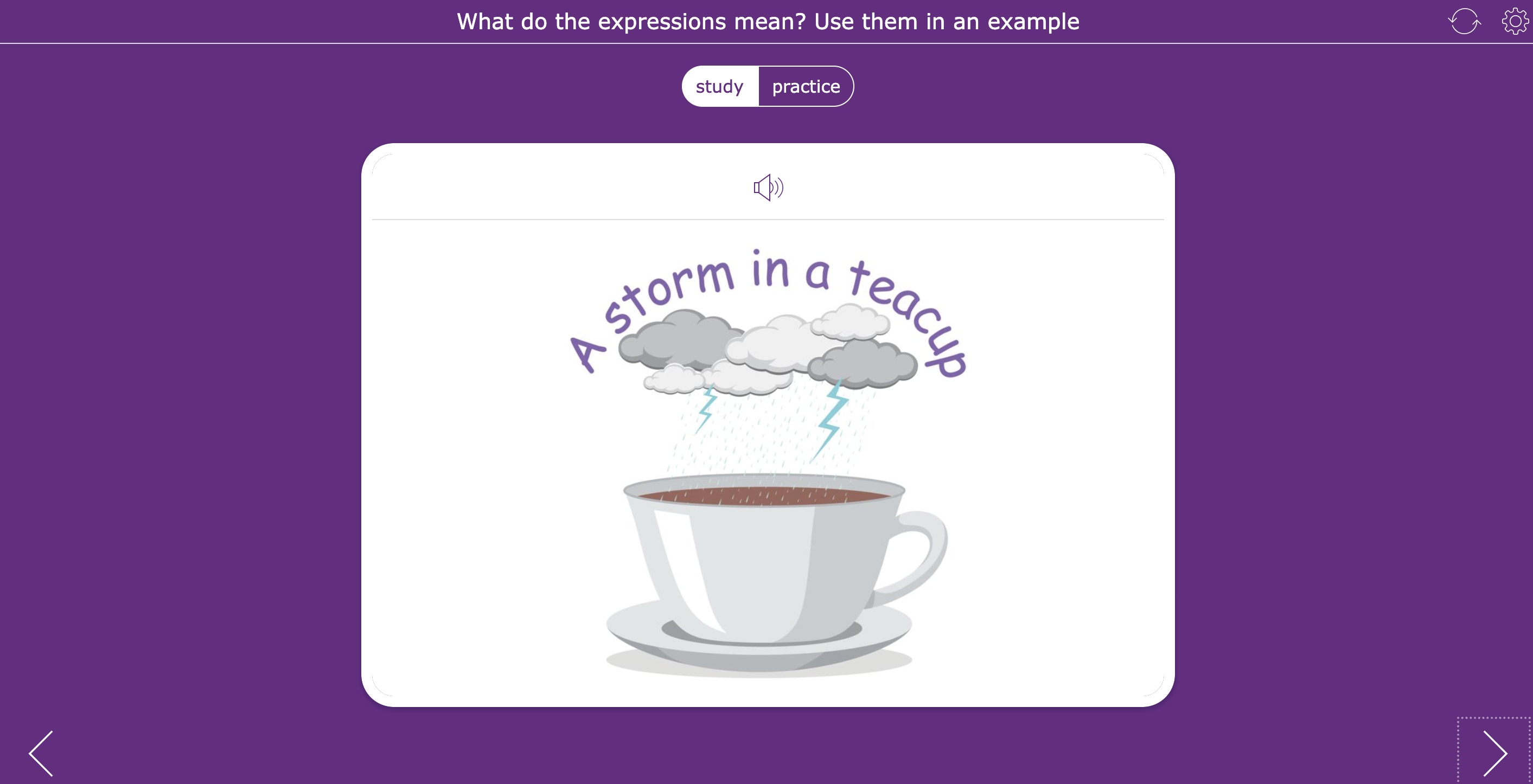
 The Flashcard widget supports active recall and repetition, making it perfect for memorization and concept reinforcement. Teachers can enrich flashcards with images and audio, allowing students to practice independently and at their own pace—without leaving the learning platform.
Example activity
Vocabulary flashcards for language learning with pronunciation audio and images.
Features that stand out for this purpose
- Ideal for vocabulary, formulas, and key concepts
- Text, image, and audio support
- Student-paced practice and study modes
- The possibility to open up flashcard chapters or sections to students
- Supported for both print and large classroom screens
- CSV importer
4. Gamification Tools → BookWidgets Games
What teachers use now: Separate gamification platforms to build wordsearches, crossword riddles, memory games, and more.
Replace with BookWidgets game widgets
 BookWidgets includes built-in game-based widgets that turn practice into play. There are 9 games you can use to gamify your educational content: Pair Matching, Memory, Crossword Puzzle, Jigsaw Puzzle, Spot The Difference, Bingo Card, Randomness, Snowman (or Hangman), and Wordsearch. These games help reinforce learning objectives while keeping students engaged—without introducing yet another tool.
Educational game example
A pair-matching game with audio support to revise newly learned French vocabulary.

Or how about combining a game and a worksheet activity to check understanding? Check out this fun wordsearch puzzle about alphabetical order.

Features that stand out for this purpose
- Text, image, and audio support in most games
- LaTeX support to practice math and science formulas or calculations
- Content-driven gamification
- Possibility to use the same content in a different game format
- Combine games with quizzes to check for deeper understanding
- Works on all devices
- Real-time results overview using the live monitoring feature
5. Entire Lessons → WebQuest Widget
What teachers use now: e-pub builders, website builders, or LMS pages
Replace with the BookWidgets WebQuest widget
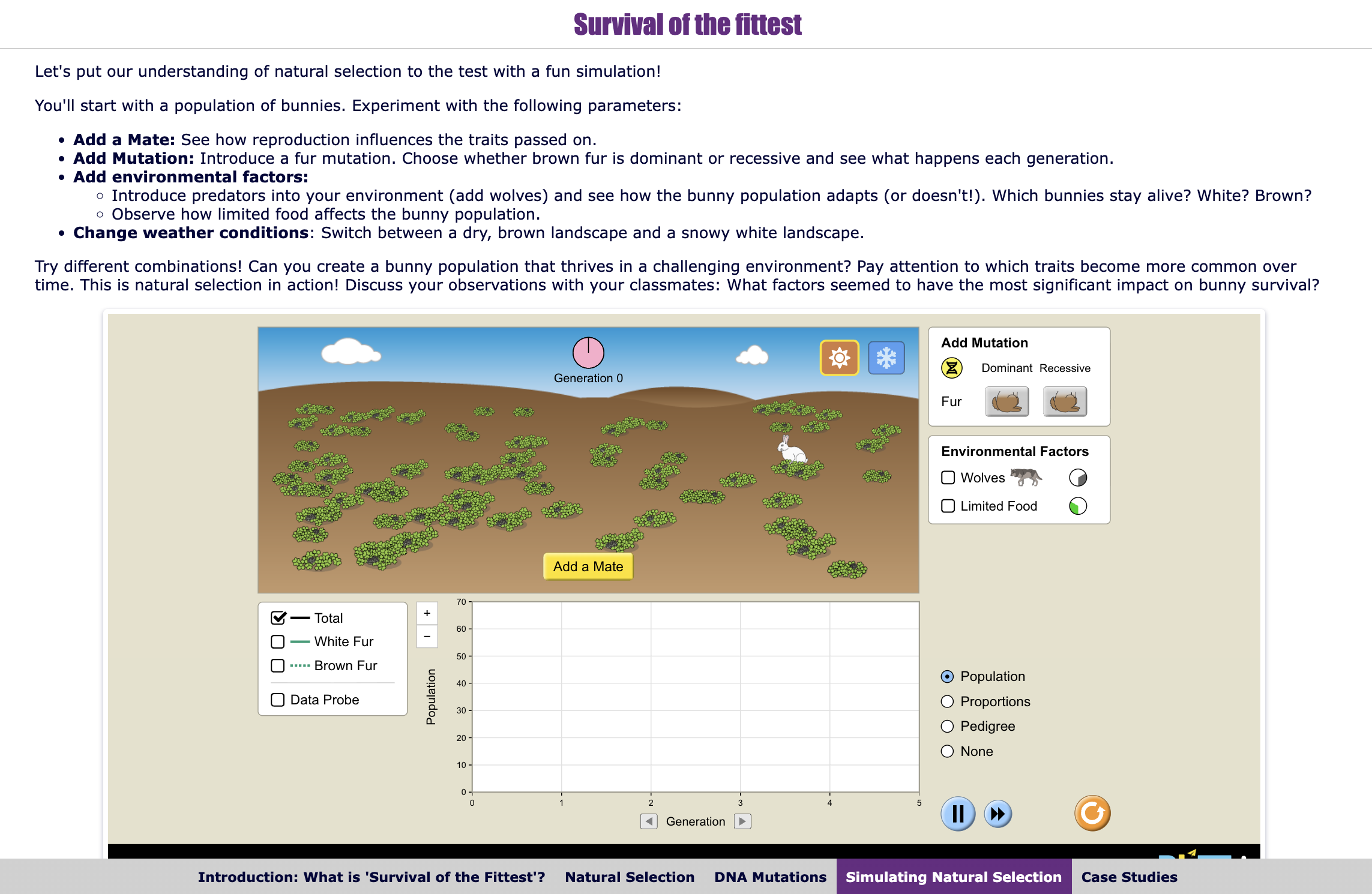
 The WebQuest widget allows teachers to design complete, guided digital lessons from start to finish. Instructions, resources, tasks, and reflection moments are combined into one structured learning path that students can follow independently or collaboratively.
Example lesson plan
An instruction-led and project-based lesson where students explore sources, complete tasks, and submit reflections in one flow. This lesson includes an interactive PhET simulation and reflection questions to check for understanding and engage students.
Features that stand out for this purpose
- Step-by-step lesson structure
- Integrate other widgets for practice and repetition purposes
- Embedded multimedia resources including interactive science simulations
- Differentiation within one lesson
- Possibility to lock and unlock tabs or chapters
- Ideal for inquiry-based learning
6. Video Instructions & Quizzes → Video Quiz Widget
What teachers use now: Video platforms combined with quiz tools, EdPuzzle, or YouTube
Replace with the BookWidgets Video Quiz widget
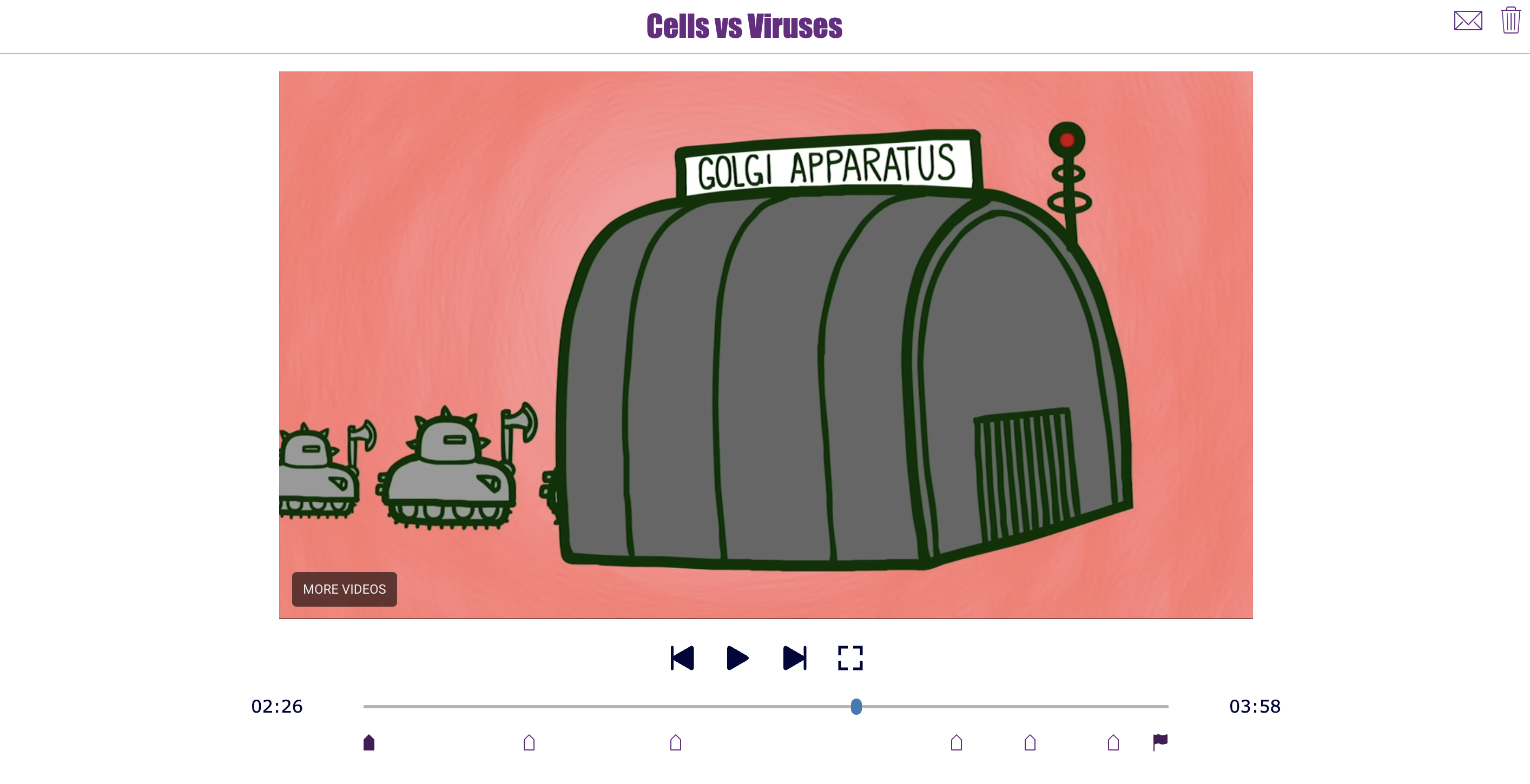
 The Video question widget combines instruction and assessment in one activity. Teachers can embed videos and ask questions at specific moments, ensuring students actively process content instead of passively watching.
Video quiz example activity
A flipped lesson video with comprehension questions placed throughout.
Features that stand out for this purpose
- Questions embedded directly in videos
- Up to 37 question types to choose from: auto-graded and open-ended questions
- Immediate comprehension checks
- Supports flipped and blended learning
- Centralized grading and feedback
- Accessibility options for students: speed, subtitles, ...
7. Live Monitoring → Live Widgets
What teachers use now: Student progress monitoring tools like Formative
Replace with BookWidgets Live Widgets
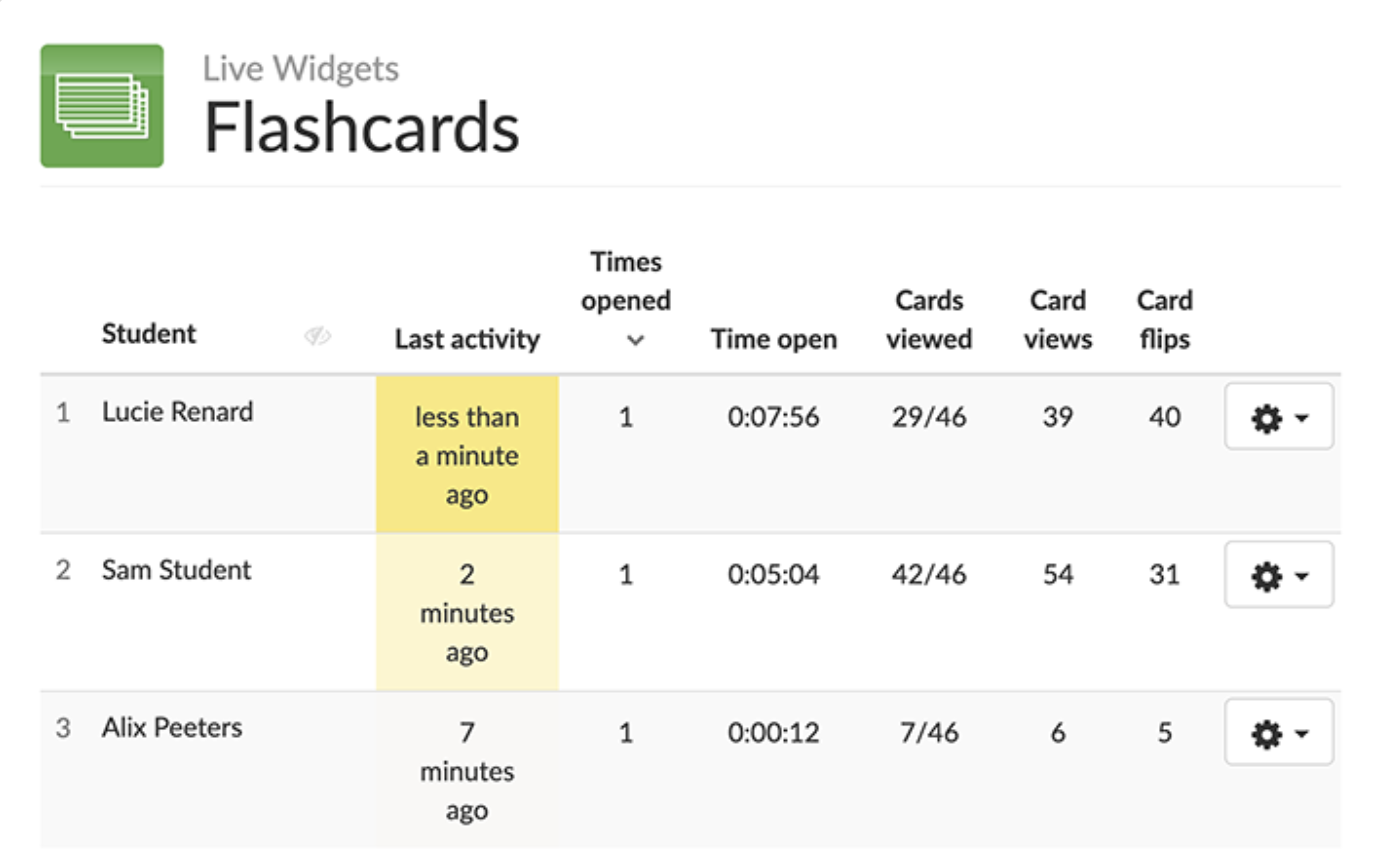
 Live Widgets enable real-time interaction during lessons. Teachers can instantly collect responses, display results, and adjust instruction based on student understanding. For activity results that can't be submitted, you can also check handy statistics to see whether your students have practiced in the past and if they understand or not.
Example activity showcasing live student monitoring
Check whether your students have been practicing their flashcards or not. You can also see what students indicated when practicing in "practice mode" to get a better view of their learning progress and understanding.
Features that stand out for this purpose
- Real-time student responses
- Data legacy for 31 days
- Anonymous or named answers
- Actions to take for differentiation purposes
8. Learning Paths → Planner Widget
What teachers use now: Learning path or adaptive learning platforms, Build learning paths in their LMS
Replace with the BookWidgets Planner widget
 BookWidgets allows teachers to create differentiated learning paths using the Planner widget. Students can work through tasks at their own pace. Tasks can be presented by the teacher or chosen by the students. A planner widget can also be used as a student choice board.
Example learning path
This choice board learning path for book reports gives students the opportunity to choose their own assignments after reading a book. It sparks engagement and motivates students to pursue their own interests. As a teacher, you can still manage by color-coding the type of assignments and stating some ground rules.

Features that stand out for this purpose
- Embed multimedia tasks or other widgets
- Differentiation within one activity
- Student choice and autonomy
- Clear structure without complexity
- Works inside the LMS
9. Brainstorming & Mind Maps → Mind Map Widget
What teachers use now: Mind mapping or brainstorming tools
Replace with the BookWidgets Mind map widget
 The Mind Map widget helps students visually organize ideas, activate prior knowledge, and reflect on learning. It’s especially effective at the start or end of a lesson to structure thinking.
Example activity
A brainstorm mind map as part of a research project or project-based learning lesson.

Features that stand out for this purpose
- Visual and structured organization of ideas
- Easy creation and editing
- Supports higher-order thinking
- Great for planning and reflection
10. Feedback Tools → Survey Widget & Rubrics
What teachers use now: Survey or feedback platforms, editing features in digital documents or pdf's
Replace with the BookWidgets reporting dashboard
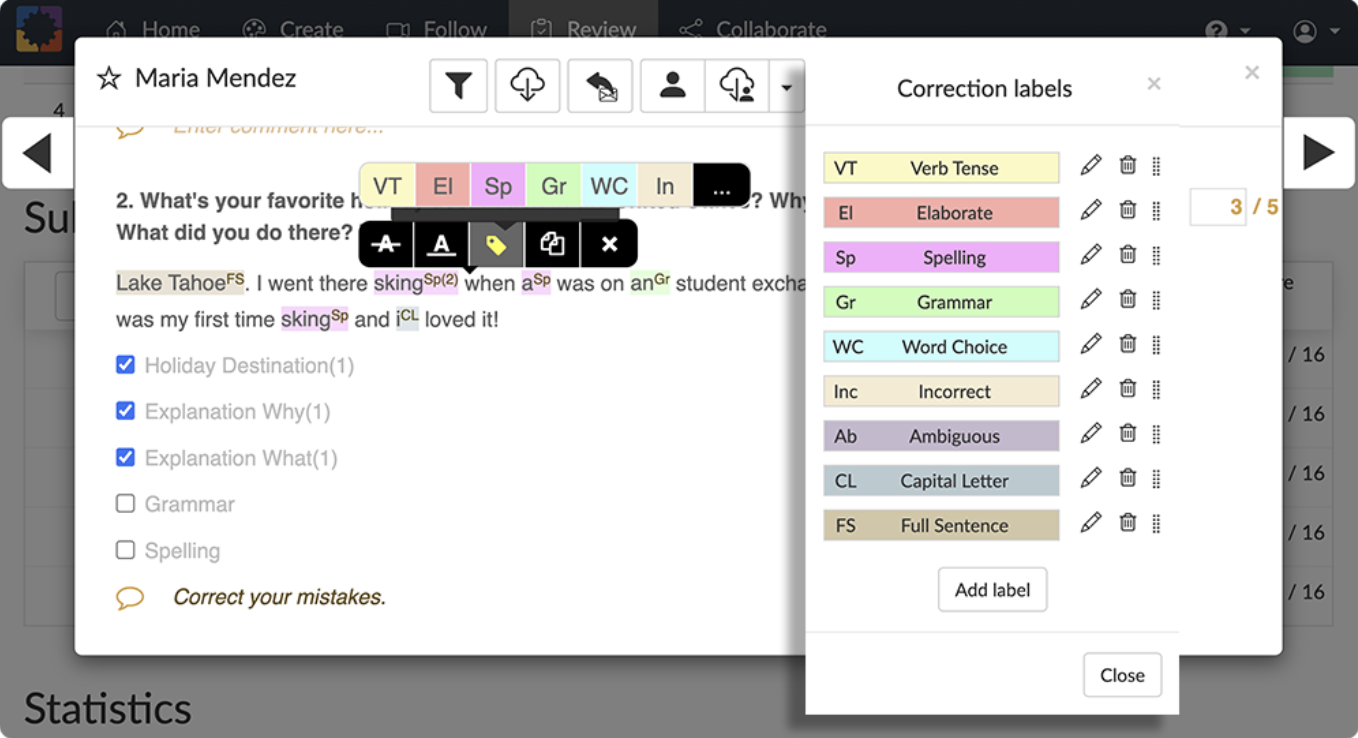
 BookWidgets supports both qualitative and structured feedback when teachers are using its evaluation widgets. From one central dashboard, teachers get a clear overview of all student responses, scores, and progress. Closed questions are graded automatically, while open questions can be reviewed quickly using smart navigation and filtering, allowing teachers to focus their time where feedback has the most impact.
What really sets the reporting dashboard apart is the variety and depth of feedback options. Teachers can provide written, audio, or rubric-based feedback, depending on the assignment and student needs. Feedback can be given per question or for the entire activity, making it easy to combine detailed guidance with holistic comments. Once feedback is released, students see their results, corrections, and teacher comments all in one place—clearly structured and easy to understand. For high-stakes situations like exams, feedback and grades can also be shared in a secure, locked environment using Safe Exam Browser or Exam Links. The result is a feedback workflow that is not only faster and more consistent for teachers but also far more meaningful and actionable for students.
Example feedback activity
Features that stand out for this purpose
- Centralized overview of results
- Automatic grading for closed questions
- Efficient grading of open questions: Quickly navigate between students and questions, making it easy to review and assess open-ended responses at scale.
- Multiple feedback formats: Add correction labels, provide written feedback, audio feedback, or a combination of all to better support different learning needs.
- Rubric-based assessment: Attach rubric questions to assignments for transparent, consistent evaluation of skills, processes, and attitudes.
- Feedback per question or per assignment
- Secure feedback release: Share grades and feedback in a locked environment
- Student-friendly feedback view: Students access their results, corrections, and feedback in one structured view, making it easier to reflect and improve.
- LMS synchronization: Grades and feedback sync seamlessly with the LMS
Wrap up
Consolidating your school’s digital toolbox isn’t about taking tools away from teachers—it’s about giving them one powerful, flexible platform that supports everything they already do, without the overload. As you’ve seen, the tools teachers typically rely on for tests, assignments, feedback, live interaction, lesson delivery, and differentiation can all be replaced by thoughtful widget types and features within BookWidgets.
By moving from 10 separate tools to 1 integrated solution, schools reduce complexity for teachers, create a clearer learning experience for students, and simplify management for IT and school leaders. Teachers gain time, consistency, and pedagogical freedom. Students benefit from structure, clarity, and meaningful feedback. And schools regain control over privacy, integration, and professional development.
In short: fewer tools, better teaching, stronger learning. That’s the real power of consolidation with BookWidgets.
All the activities in this blog post are created with BookWidgets and can be easily duplicated, adapted, and shared with your students. You can find all the lesson plans in this BookWidgets group along with over 3000 other BookWidgets example lessons.
Want to learn more about creating engaging lesson activities with BookWidgets?
✔️ Sign up for upcoming free webinars and view recordings on the BookWidgets Teacher Academy Page.
✔️ Learn more about our special, limited-time pricing for groups of teachers for purchasing BookWidgets now without having to wait for the next school year or budget cycle.
✔️ Follow BookWidgets on BlueSky and LinkedIn and join our teacher community on Facebook!
And me? I'm Lucie from BookWidgets. Follow me on LinkedIn 👋


