
3 Easy Steps to Match Your Digital Assessments with Your School’s Grading System
 Lucie Renard —
Grading students isn’t the same everywhere.
Some teachers work with scores out of 10 or 100. Others use only feedback, letter grades, proficiency levels, or rubrics. Until now, BookWidgets always calculated results using numeric grades — simple and clear, but not always aligned with every school’s grading system.
That changes today. You can now use custom grading scales in BookWidgets — making your grading workflow more flexible and better aligned with how assessment already works in your school.
Let me show you what’s new and how it helps you grade smarter. In this blog post (Click the link to jump to the section you want to read):
- How grading works in BookWidgets
- What are grading scales?
- Setting up grading scales in 3 simple steps
- Ready-to-use grading scale examples
- Using the Rubric Question for Formative Assessment
But first: If you're just switching to digital evaluations, let me explain BookWidgets in 3 sentences:
- BookWidgets is an all-in-one platform that helps all teachers create interactive digital assignments and assessments (with a variety of 37 interactive question types.
- Student answers are collected and organized in a grading dashboard, where teachers can review work, give feedback, and evaluate performance efficiently.
- BookWidgets integrates seamlessly with learning platforms like Google Classroom and Microsoft Teams, making digital assessment easy to manage within your existing workflow.

How grading works in BookWidgets
By default, BookWidgets grades student work using numeric scores.
When students complete an activity:
- BookWidgets calculates a score automatically (for example, 8/10 or 80%)
- You can review answers in the grading dashboard
- Teachers can still add feedback and adjust grades manually
If you're new to BookWidgets, or just want to grade more efficiently, this webinar about the BookWidgets reporting dashboard is a must-watch.
This system works perfectly for many classrooms and remains the foundation of assessment in BookWidgets. Keep in mind that even though the foundation is grade-based, you can still choose to return feedback without showing grades to your students by configuring the student feedback view.
But not every school communicates results solely in numbers. Many teachers need grades displayed as:
- A–F letter grades
- Achievement or proficiency levels
- 4-point scale
- Custom school grading systems
Until now, teachers had to interpret or convert those scores manually.
So, why does this matter for digital assessment? Grading scales make digital assessment more realistic and school-aligned. Instead of adapting your grading to the tool, BookWidgets adapts to your assessment system.
This helps you:
- Keep grading consistent
- Save time during evaluation
- Provide clearer feedback to students
- Align BookWidgets with LMS workflows like Google Classroom and Microsoft Teams
- Small setup, big impact on your grading workflow.

What are grading scales?
A grading scale translates a numeric score into the grading format your school uses.
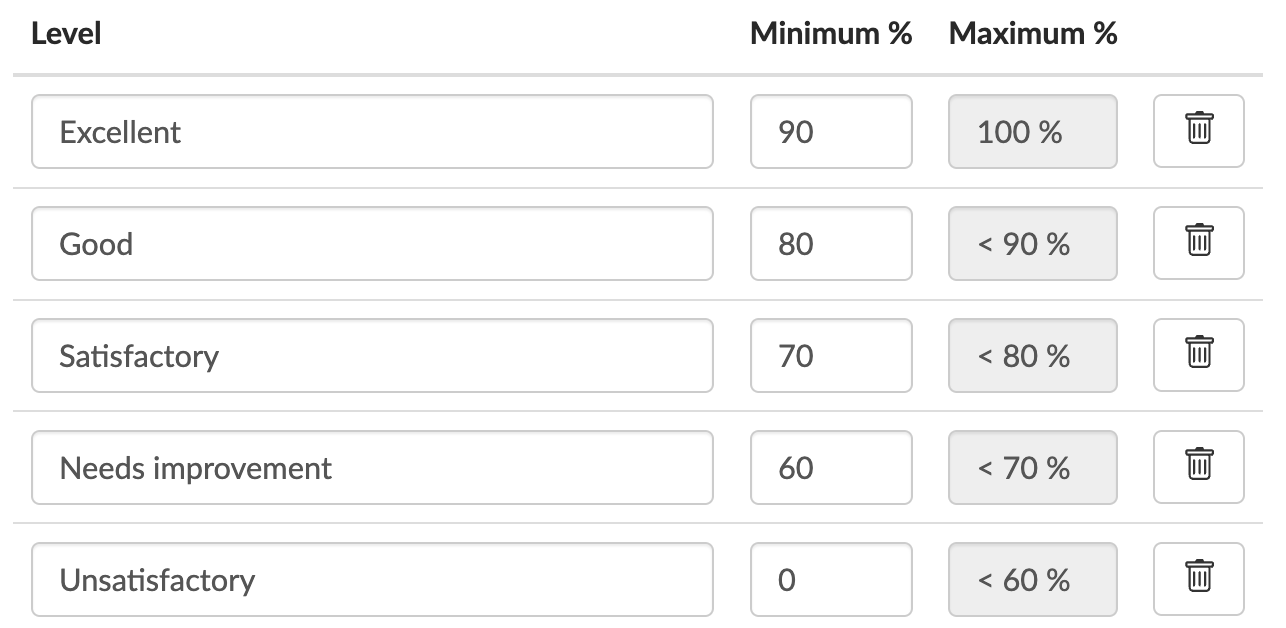
Below is one example out of the many possible grading scales: a proficiency-based grading scale. (Make sure to keep reading to find more existing Grading Scales and inspiration for both primary education as higher education)
- Excellent (90% - 100%)
- Good (80% - < 90%)
- Sufficient (70% - < 80%)
- Needs improvement (60% - < 70%)
- Unsatisfactory (0% - 60%)
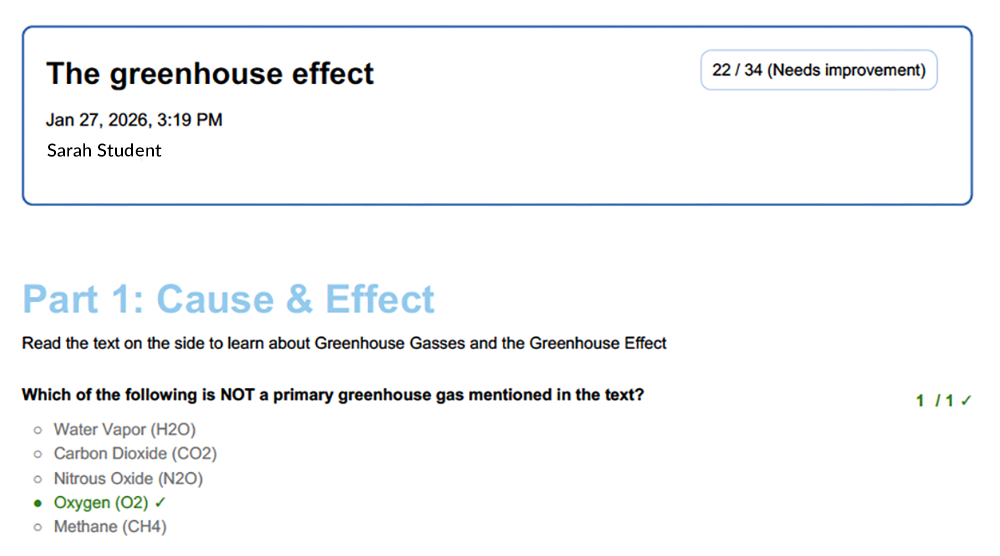
With grading scales, BookWidgets automatically converts scores for you — while still showing the original numeric result for transparency.
This means:
- Students see grades in a familiar format
- Teachers keep detailed scoring data
- Assessment stays consistent across assignments

Setting up grading scales in 3 simple steps
Changing your grade settings in BookWidgets only takes a minute. Here’s how to do it:
Step 1 — Open your course's grade settings
Log in to your BookWidgest account or navigate to BookWidgets in your LMS. Now, navigate to the reporting dashboard by entering the page where you go to review student work. In BookWidgets, you just click the "review" tab.
The grade settings are configured per course, ensuring consistency across all assignments and widgets students complete within the same course. Go to the course in which you want to apply your grading system and open the grading settings by clicking the 3 vertical dots ⠇next to the course title.
Repeat the process for all other courses if needed.
Step 2 — Choose or create a grading scale
Choose a grading scale
You can now select a grading scale. Choose one of the predefined grading scales or create your own grading scale from scratch.
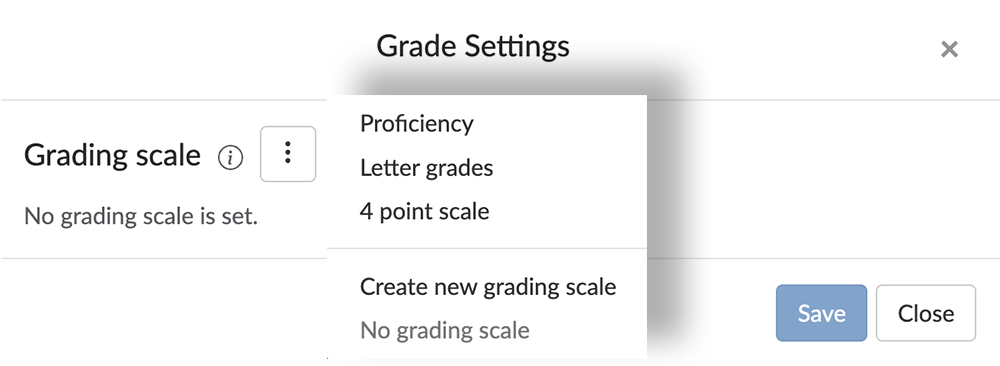
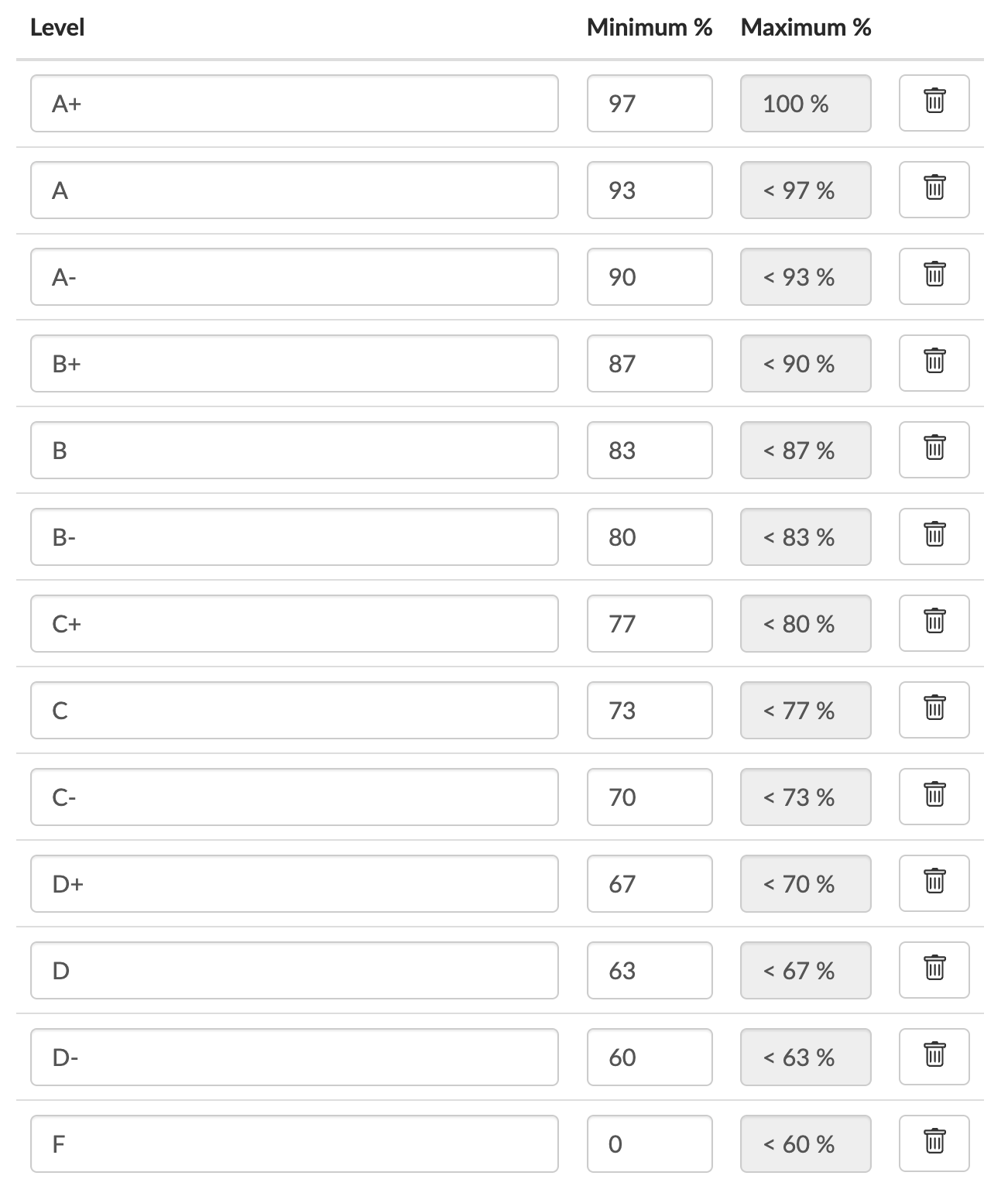
Here's what the predefined grading scales look like and how you can still change them. You can open the image in a new tab to see more clearly. Right mouse click > Open image in new tab.
| Letter Grades | Proficiency | 4 Point Scale |
|---|---|---|
 |
 |
 |
Customize ranges and grade labels to match your school policy.
Create a grading scale
When creating a custom grading scale you will be using more often, it's best to create a reusable grading scale in your BookWidgets account settings. All your custom grading scales will appear in the list, along with the grading scales already there.
Here's how you can create a reusable grading scale:
In your BookWidgets account, click your user icon in the upper right corner. Click "Settings" and navigate to "Grading Scales".

💡Pro tip: As BookWidgets accounts are now "teacher-owned", BookWidgets has been developing a system to enable a school to move to "school-based ownership". There's a lot of information about this school-based ownership to take in and decisions to make. If you're interested, you can always request information about this through support@bookwidgets.com. Here's why I bring this up: In a school with school-based ownership, the IT admin can set grading scales that match the school's grading system, and teachers can choose them for their courses.
Step 3 — Apply and start grading
Once selected, the grading scale automatically applies to existing work in the current school year and all new assignments in the course. Student results will now display according to your grading system, while BookWidgets still keeps the original numeric score visible too.
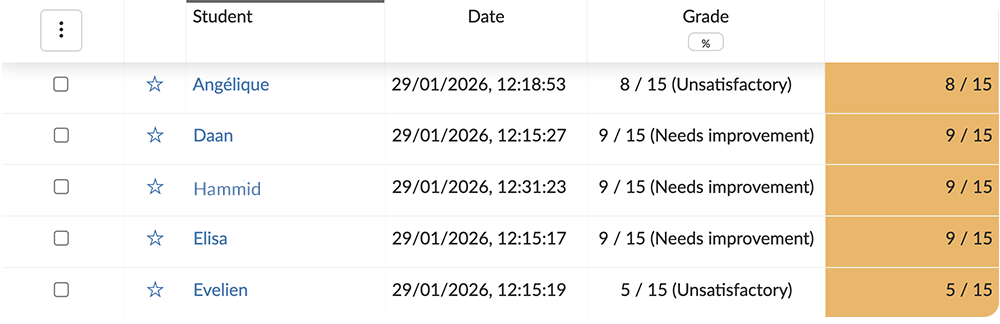
No more manual conversions — your digital assessments now match your school’s grading approach automatically. This is how your students will see the grading results on their assessment's feedback:

Ready-to-use grading scale examples
Here are some grading scales you may take on and add to a BookWidgets Course.
| Grading Scale Type | Example Grades | Example Score Ranges |
|---|---|---|
| Percentage Scale | 0–100% | 90–100 = Excellent, 70–89 = Good, 50–69 = Pass |
| Points Scale | 0–10 or 0–20 | 9–10 = Excellent, 7–8 = Good, 5–6 = Pass |
| Letter Grades | A, B, C, D, F | A = 90–100, B = 80–89, C = 70–79 |
| GPA Scale | 4.0 – 0.0 | A = 4.0, B = 3.0, C = 2.0 |
| Standards-Based | Exceeds / Meets / Approaching / Beginning | Based on mastery rather than percentage |
| Proficiency Levels | Level 4, 3, 2, 1 | 4 = Advanced, 3 = Proficient, 2 = Basic, 1 = Below |
| Pass / Fail | Pass / Fail | Pass ≥ 50% |
| Stars Scale | ⭐⭐⭐⭐ / ⭐⭐⭐ / ⭐⭐ / ⭐ | 4 stars = Excellent |
| IB-style Grades | 1–7 | 7 = Excellent, 1 = Poor |
| Rubric Levels | Exemplary / Proficient / Developing / Beginning | Based on rubric criteria |
| Descriptive Feedback | Excellent / Good / Satisfactory / Needs Improvement | Teacher-defined ranges |
Grading scales don’t always have to use numbers or letters. Many teachers use emoji-based grading scales to give quick feedback, especially in formative assessment or with younger learners. Emoji scales make results easier to interpret and can make digital assessments feel more encouraging and student-friendly.
Here are some creative emoji grading scale ideas you could recreate with custom grading scales in BookWidgets.
| Emoji Scale | Meaning |
|---|---|
| 😄 🙂 😐 😟 | Very good → Good → Almost there → Needs help |
| 🟢 🟡 🔴 | Mastery → Developing → Needs support |
| ⭐⭐⭐⭐ ⭐⭐⭐ ⭐⭐ ⭐ | Excellent → Good → Fair → Needs improvement |
| 🚀 👍 ✏️ 🛠️ | Outstanding → Good work → Needs practice → Needs help |
| 🌱 🌿 🌳 | Beginning → Growing → Mastery |
| 🔵 🟢 🟡 🔴 | Excellent → Good → Developing → Needs support |
| 🎉 👍 👌 🤔 | Fantastic → Good → Okay → Needs improvement |
| 🐣 🐤 🐥 🦅 | Just starting → Learning → Almost there → Mastery |
| 🍎 🍊 🍋 | Great → Good → Needs improvement |
| 💡 🔎 🛠️ | Strong understanding → Still exploring → Needs support |

Using the Rubric Question for Formative Assessment
Grading scales are great for translating scores into grades, but sometimes teachers want to focus less on grades and more on learning progress. That’s where the Rubric question in BookWidgets becomes especially powerful.
Instead of giving students just a final score, the rubric question allows you to evaluate work using multiple criteria, each with clear performance levels. For example, you could assess a presentation based on: Content understanding, Structure and organization, Creativity, and Communication skills. Each criterion can have its own performance levels, such as Excellent, Good, Developing, or Needs improvement. This helps students understand what they did well and where they can improve, making it ideal for formative assessment. Another powerful feature of BookWidgets rubrics is that students can self-scale before the teacher does.
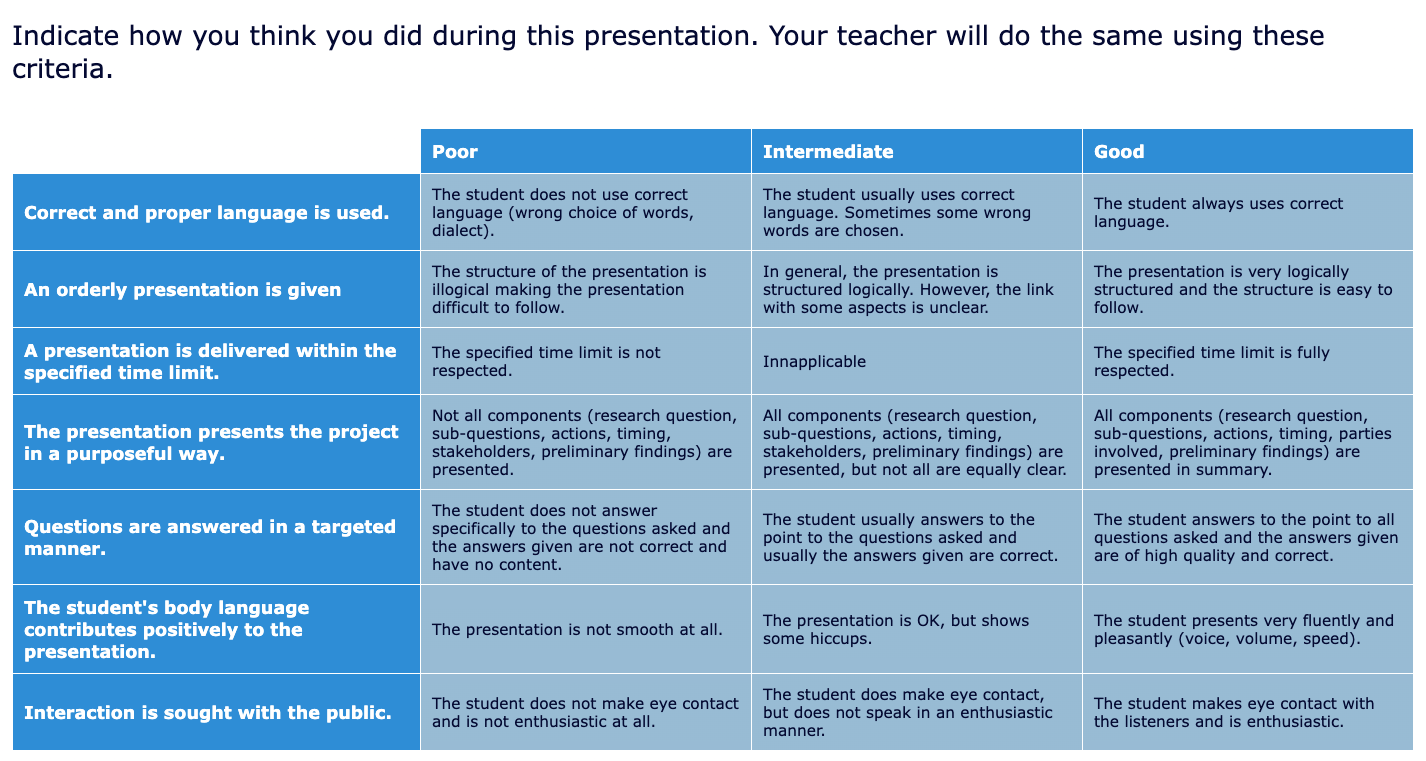
Teachers often use rubric questions for:
- Project-based learning
- Writing assignments
- Presentations
- Peer feedback
- Self-assessment activities
Combined with BookWidgets’ grading tools, rubrics allow you to move beyond simple scores and provide meaningful, structured feedback that supports student growth.
Ready to try grading scales?
Open your course settings and set your grading scale in just a few clicks. I’d love to hear how grading works at your school — do you use numbers, letters, levels, or something else entirely? Be sure to let us know in our Teaching with BookWidgets Facebook group!
And me? I'm Lucie from BookWidgets. Come say hi on LinkedIn 👋
Happy widgeteering! 🚀


