Formative and summative evaluation with BookWidgets
BookWidgets as an evaluation tool
At BookWidgets, we believe evaluation plays a crucial role in the learning process. When teachers guide students through meaningful evaluation, real learning growth can take place.
BookWidgets is both a digital lesson creation tool and an evaluation platform. It offers teachers a wide range of interactive activities that make evaluation more efficient, constructive, and adaptable to students' needs.
Formative evaluation with BookWidgets
Formative evaluation is an ongoing process where teachers assess student learning during teaching and learning to provide feedback, guide progress, and improve understanding. Learn more in our ultimate formative assessment guide on creating an effective formative teaching environment.



BookWidgets worksheets and quizzes offer a wide range of options for formative assessment, feedback, and correction, helping teachers support student learning effectively.
Teachers can:
- Choose between over 35 interactive question types that are auto-graded, making formative assessments more engaging for students and teachers, including a rubric question type.
- Show correct answers after completion so students immediately see what they got right and where they need more practice.
- Provide instant visual feedback by highlighting correct answers green, helping students learn through immediate response and reflection.
- Set up automatic, personalized feedback based on students answers, so learners receive guidance adapted to their level and progress.
- Return results with personalized feedback without requiring a grade or score, allowing students to focus on feedback and improvement (growth mindset approach).
- Allow students to edit their answers after providing feedback, encouraging reflection and deeper learning.
- Monitor worksheets or quizzes in real time using LIVE mode, enabling teachers to support and differentiate instructions as students work.
- Provide a rationale alongside correct responses in the Quiz Widgets, helping students understand reasoning step by step.
- Enable support tools such as calculators, spell check, screen readers, and text highlighting, ensuring accessibility for students with special needs and benefiting all learners.
- Enable random question selection to give students a different set of questions each time they want to practice for a high-stakes exam.
Active learning through educational games supports effective formative assessment. Many widget games are automatically corrected, giving students instant feedback during practice.
Game-based activities such as crosswords and other interactive exercises increase student motivation and engagement. They can also encourage reflection and deeper learning.
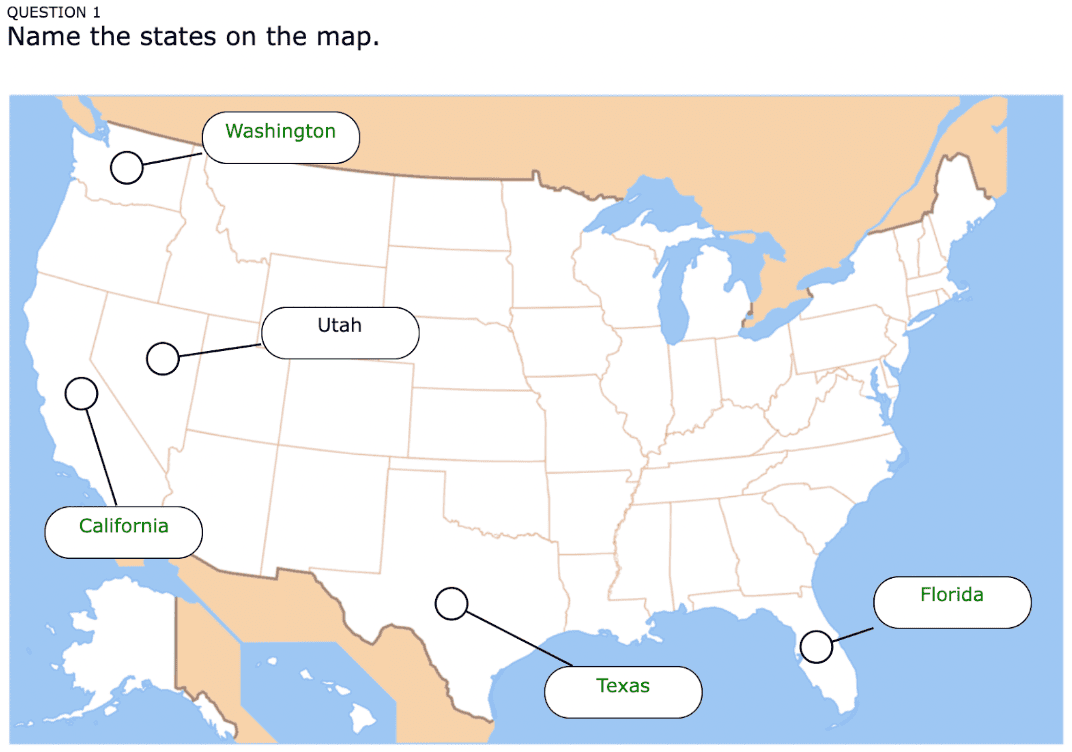
Below you can see what educational games look like in practice.
Exit tickets are a quick and effective way to assess student understanding at the end of a lesson.
With BookWidgets, students complete short formative activities that encourage reflection and individual responses after a lesson or unit.
Teachers gain clear insights into student understanding, helping them adjust instruction based on learning needs.
BookWidgets provides a wide range of ready-to-use digital exit tickets. The Exit Ticket Guide includes over 60 templates you can start using immediately.
Summative evaluation with BookWidgets
Summative evaluation measures student learning at the end of a learning period or unit. It is used to assess achievement, assign grades, and evaluate overall understanding.


BookWidgets worksheets and quizzes provide a wide range of summative assessment options, including securing testing features for exams and controlled evaluations.
Teachers can:
- Choose from 35+ interactive auto-graded question types, making summative assessments clear, efficient, and engaging for both students and teachers.
- Enable answers submission so teachers can easily review and grade student work in the BookWidgets reporting dashboard.
- Display points per question so students understand the weight of each part of the assessment.
- Hide correct answers after submission to ensure exam integrity and prevent early access to solutions.
- Require a password to view correct responses, giving teachers full control over result access.
- Enable strict answering order, especially useful for sequential or step-by-step evaluations.
- Activate a timer in exam mode so students complete the assessment within a set time limit.
- Set a start password to control when students can begin the assessment and ensure a fair start for all learners.
- Enable the Safe Exam Browser mode to create a secure testing environment that prevent access to other tabs or applications.
- Use a secure exam link to share your exam within any lockdown system of the school's choice. BookWidgets is not a monitoring tool or lockdown browser.
- Use resume codes to ensure students cannot re-enter an assessment unnoticed, maintaining assessment integrity.
- Apply custom grading scales to align assessments with your school's grading system or evaluation criteria.
- Enable random question selection to give each student a random set of questions on high stakes exams to prevent cheating and making it more difficult to pass on exam questions to other students.
- Enable accessibility tools such as calculators, spell check, screen readers, and text highlighting to support learners with special needs and ensure inclusive assessment conditions.
Homework is valuable way to support learning beyond the classroom. Teachers can create and review homework using interactive assignments that are easy to distribute, review, and grade.
The Worksheet and Quiz Widgets offer the same powerful options as summative assessments, making it easy to reuse familiar question types in a homework context.
Teachers can:
- Choose from 35+ interactive auto-graded question types, making homework more engaging and efficient for both students and teachers.
- Enable random question selection to reduce copying and encourage individual work.
- Enable strict answering order to guide students step by step and limit answer sharing.
- Disable text selection within the widget to allow or restrict students from selecting content.
- Enable copy/paste restrictions within the widget, preventing students from copying and pasting content from other websites into their widget.
- Add video and audio instructions to guide students through assignments in a clear and supportive way.
- Include hints in questions to reduce frustration while still encouraging independent thinking.
- Enable accessibility such as calculators, spell check, screen readers, and text highlighting to support reading and focus for learners with special needs.