
How Teachers are Using Resume Codes as a Smart Safety Measure for Digital Exams
 Lucie Renard —
Digital exams bring flexibility to the classroom—but they also introduce a key challenge for digital assessment security 👉 What happens if a student leaves the exam environment?
Whether it’s accidental, technical, or intentional, you need a way to stay in control. That’s exactly what resume codes are designed for.
In this blog post, I'll explain the newest safety measure teachers can take in BookWidgets exams. On the agenda:
- What Are Resume Codes?
- Setting Up Resume Codes in your BookWidgets Exams
- Situations in Which Resume Codes Come in Handy
But first: If you're just switching to digital evaluations, let me explain BookWidgets in 4 sentences:
- BookWidgets is an all-in-one interactive quiz maker for teachers that helps all teachers create interactive digital assignments and assessments (with a variety of 37 interactive question types.
- Teachers can share BookWidgets evaluations using Exam Links in any online exam proctoring tools to force a secure digital testing environment.
- Student answers are collected and organized in a grading dashboard, where teachers can review work, give feedback, and evaluate performance efficiently.
- BookWidgets integrates seamlessly with learning platforms like Google Classroom and Microsoft Teams, making digital assessment easy to manage within your existing workflow.

What Are Resume Codes?
A resume code is a security feature to prevent cheating in digital exams that prevents students from re-entering an assignment or exam without teacher approval.
Here’s what happens:
- A student exits the assignment or exam
- They can’t simply go back in
- They must ask the teacher for a resume code
- Only with that code can they continue
👉 This ensures that every interruption is monitored and controlled. Real-time student monitoring during tests is one of the most powerful aspects of resume codes.
When a student leaves the exam, not only does the student need a resume code to continue, but the system also alerts the teacher in the BookWidgets reporting dashboard. You know the student went outside the exam environment, even when you were not supervising that exam class. There are no silent exits, and no unnoticed interruptions.

Setting Up Resume Codes in your BookWidgets Exams
Here are 3 easy steps to follow when enabling resume codes for your secure online exams using BookWidgets.
If you're not using BookWidgets yet, make sure to create a free account and build your first exam by selecting a "Quiz" widget. Here's a webinar and blog post about building your first BookWidgets exam.
Step 1 — Enable resume codes when sharing your exam
When sharing your exam:
- Open the Share dialog
- Enable: “Require code to resume widget”
📍 Where to find it:
- Google Classroom & Teams → Share dialog, or "Choose..." menu.
- Smartschool, Google Classroom Add-On & LTI (Moodle, Canvas, Schoology, Blackboard, ....) → “Choose…” menu

Make sure to write down or store these resume codes in case you need them in the next step! You can always find them by opening these dialogs again.
Step 2 — Monitor students during the exam
Once students start, everything works normally… until a student leaves.
| 🧑🏫 Teacher View |
|---|
You will see an exit symbol in your Live Widgets dashboard as well as next to the exam submission of that student in the reporting dashboard. When you hover the icon, you will also see how many times the student exited the exam.  |
| 👩🎓 Student View |
|---|
The exam is now "locked", and the student gets a notification screen.  |
| 🧑🏫 Teacher Action |
|---|
The teacher or supervisor can let the students continue by giving them the code that corresponds to the code asked on the student's screen.  |
| 👩🎓 Student Action |
|---|
The student now needs to enter the resume code they get from the teacher that corresponds with the code asked on their screen. 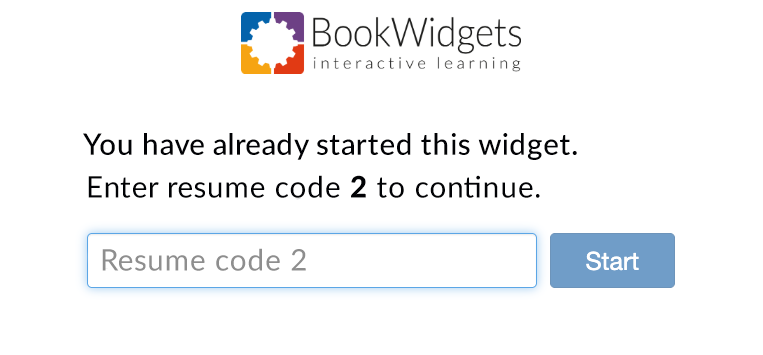 |

Situations in Which Resume Codes Come in Handy
Why would a student exit a digital exam? Not every exit is suspicious—but every exit should be monitored. Here are the most common reasons:
| 🔧 Technical issues | 👆 Accidental exits | 🧠 Student uncertainty |
|---|---|---|
| Internet drops, Device crash/freeze, Browser closes, LMS integration issues | Wrong click/tab, Closed by mistake, Navigated away, Page refreshed | Feeling overwhelmed, Confused about task, Needs a break, Thought it was done |
| 🧑🏫 Classroom interruptions | 🚶 Physical needs | 🚩 Potential misuse |
|---|---|---|
| Classroom disruption, Device check needed, Teacher asks for page refresh | Bathroom break, Feeling unwell, Emergency | Looking up answers, Checking notes, Messaging others |
Start Working with Resume Codes
Students may leave a digital exam for many reasons—some completely valid, others more concerning. The key is this: you can’t always control why they leave, but you can control how they return. With resume codes, every exit becomes visible, and every re-entry requires your approval. This gives you the control you need to keep exams fair, secure, and transparent, while still allowing flexibility when genuine issues occur.
👉 A small feature that makes a big difference in maintaining fairness in digital testing and integrity in digital testing.
Get started with BookWidgets and start using resume codes in your digital summative assessment. Be sure to let us know how your first exam went in our Teaching with BookWidgets Facebook group!
And me? I'm Lucie from BookWidgets. Come say hi on LinkedIn 👋
Happy widgeteering! 🚀


